
Working with Team Schedule
The manager will see the list of members of their team for a calendar month (current month by default).
- Users who have made changes to their work schedule will be highlighted in red, and the manager can approve or reject changes as shown in the screenshot below:

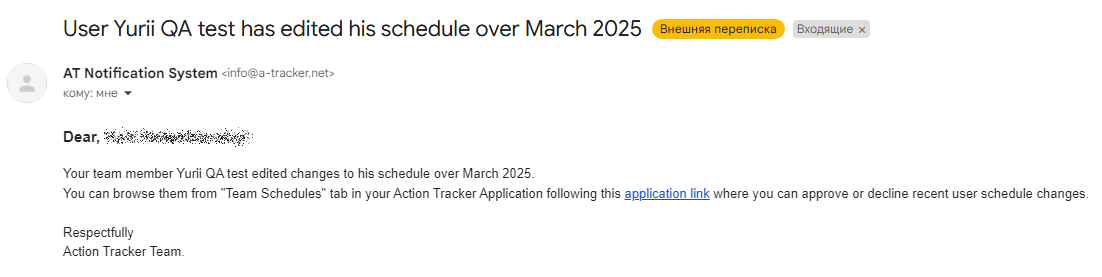
- Also, the Action Tracker system will send a notification to the manager's email (primary email) about the changes made by the team member
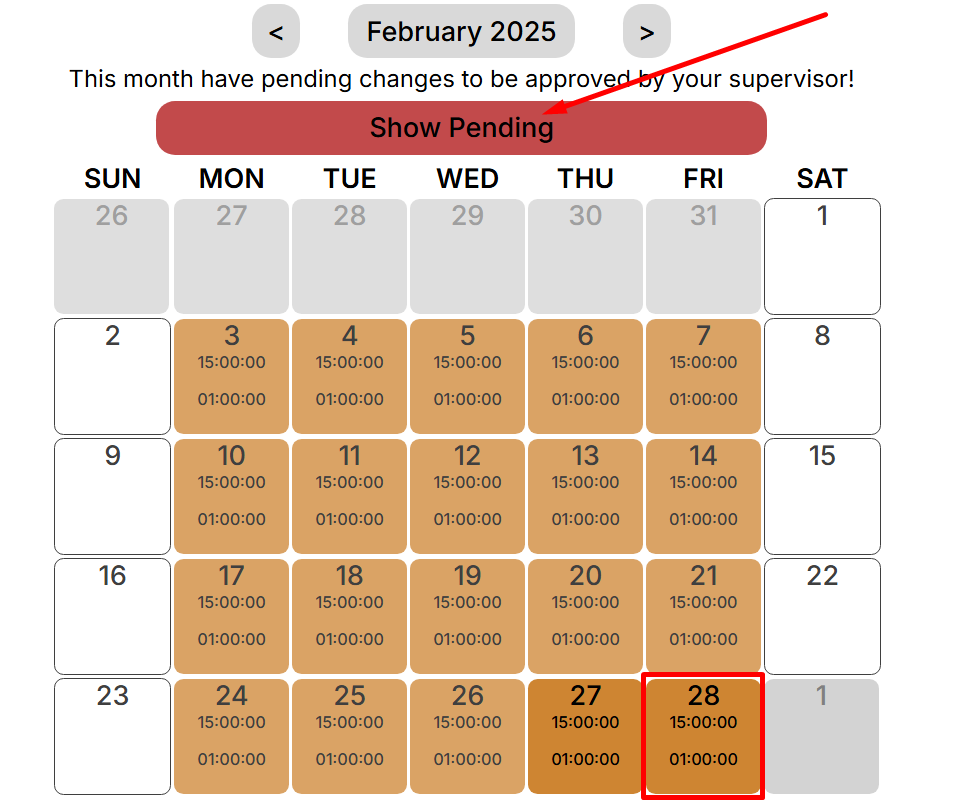
- To see what changes the contractor has made, you need to open their calendar. By default, the user's calendar displays the confirmed employment schedule, and to display the changes that are expected, click the button "Show Pending" :
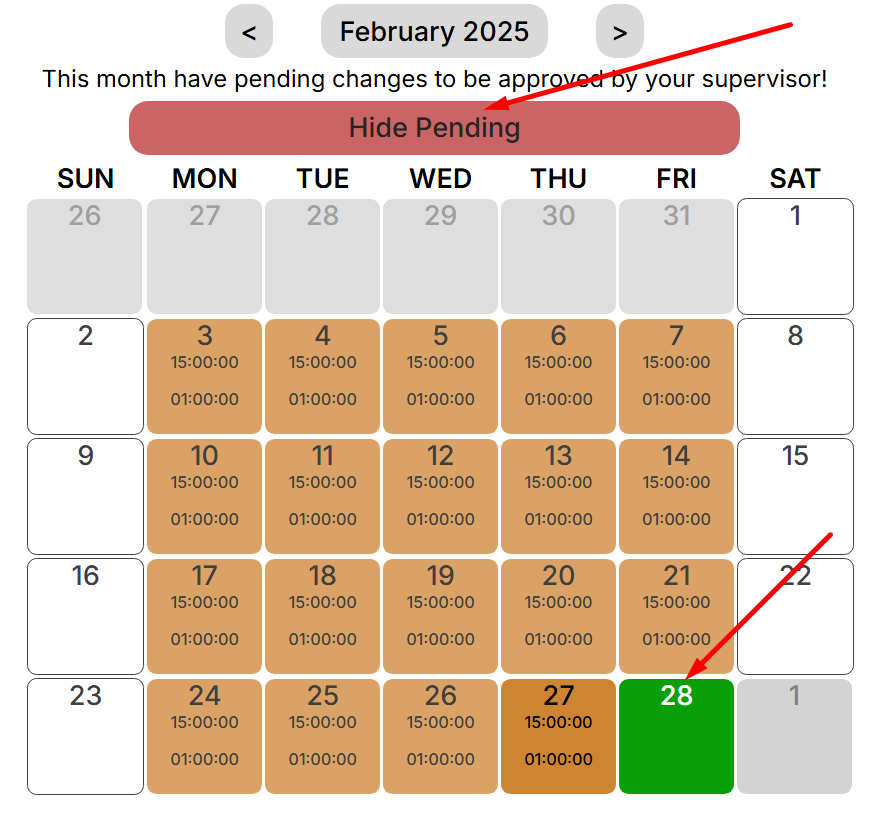
- Pending changes will be displayed:
- The manager can independently customize the work schedule for contract workers in the team. To do this, select or find a contractor in the list and click on the highlighted field.
- We will go to the “My schedule” section of the selected user. Highlighting the necessary dates with the mouse cursor, you can proceed to editing the employment schedule:
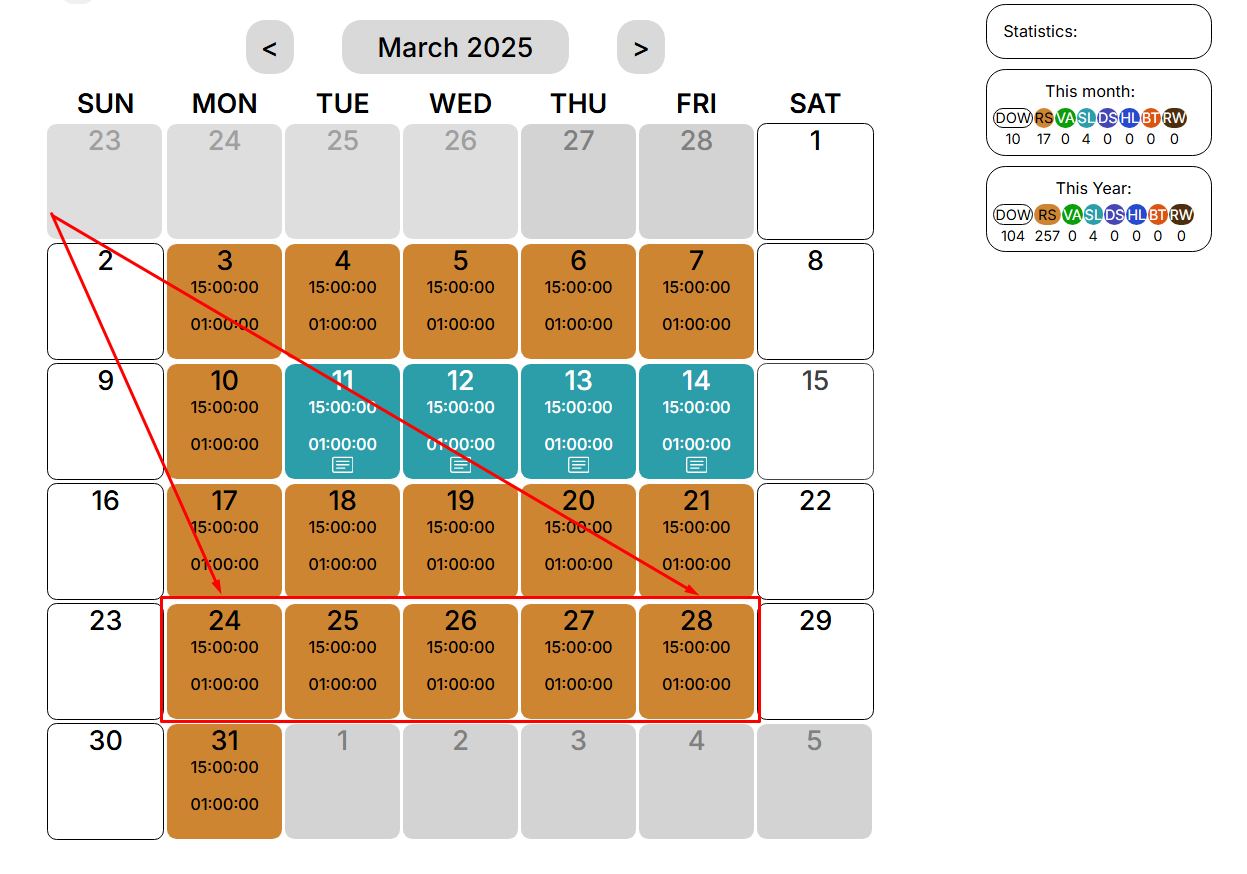
Depending on the type of work schedule we set, you can add a comment or Custom Working Hours that will be applied to the selected days
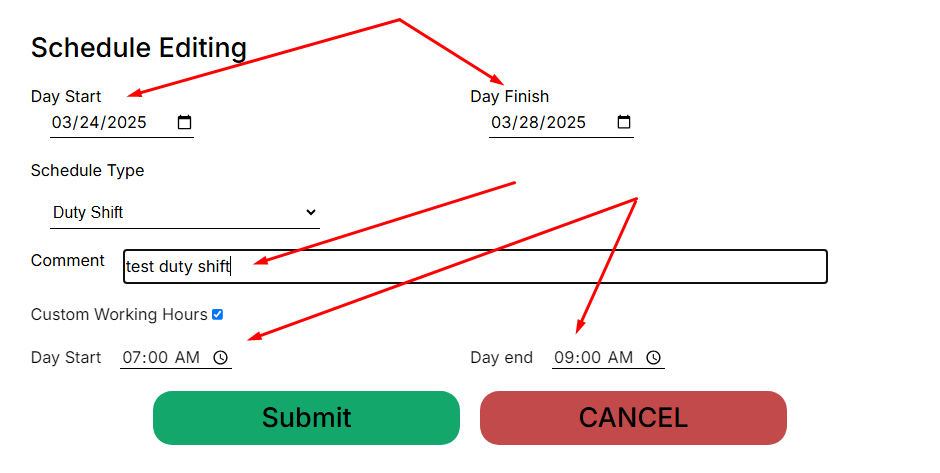
Important: in this case, the change in the contract employee's work schedule is applied immediately, without the need for confirmation from the manager.
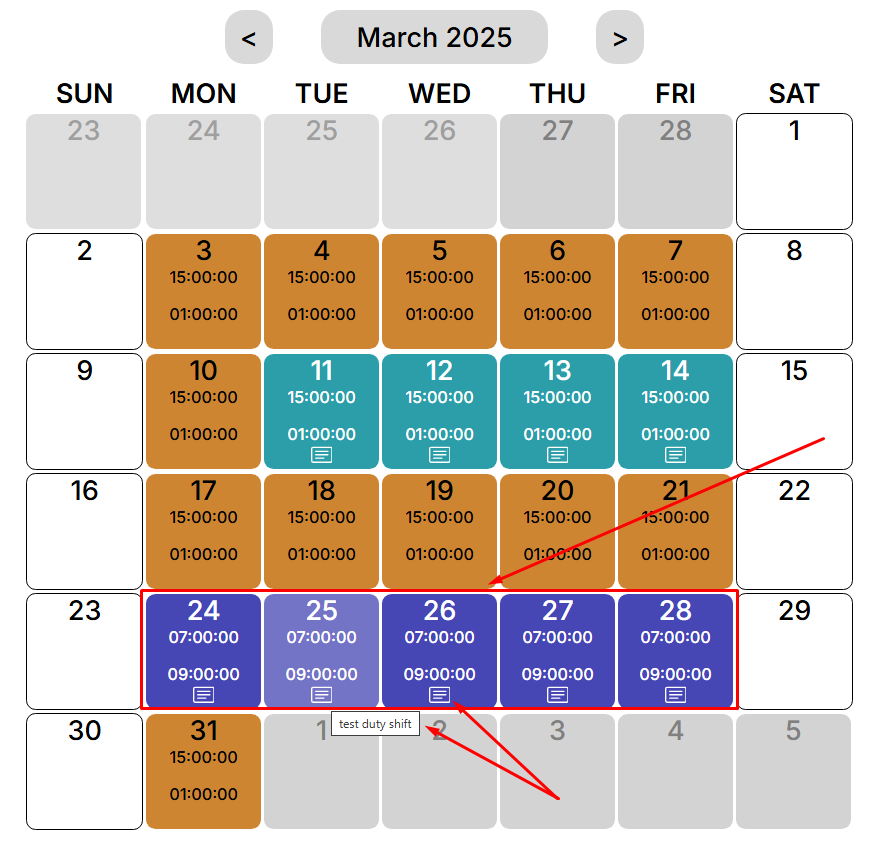
After confirming the changes, the calendar will be updated. We can see that the “Duty Shift” work schedule type has been applied with Custom Working Hours 07:00am - 09:00am and the following comment entered.
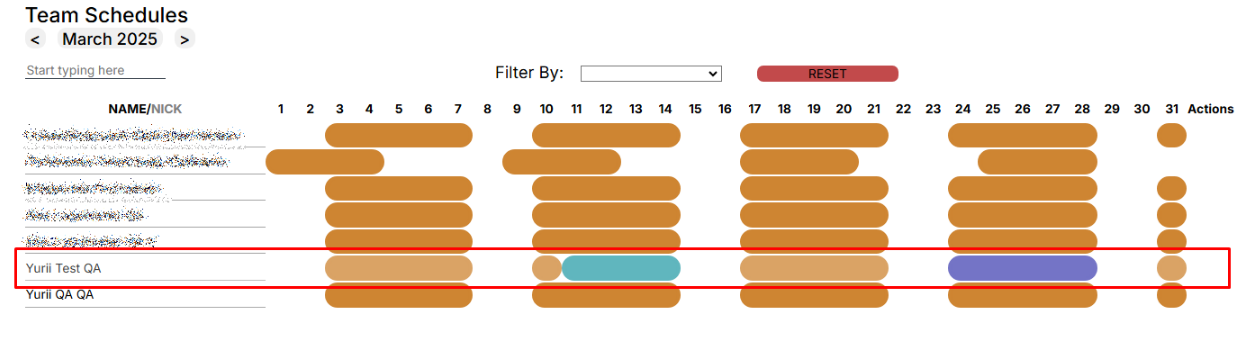
In the “Team schedule” menu, the employment schedule of the selected contractor is repainted in a different color, in accordance with the updated employment schedule
No Comments