Working with Team Schedule
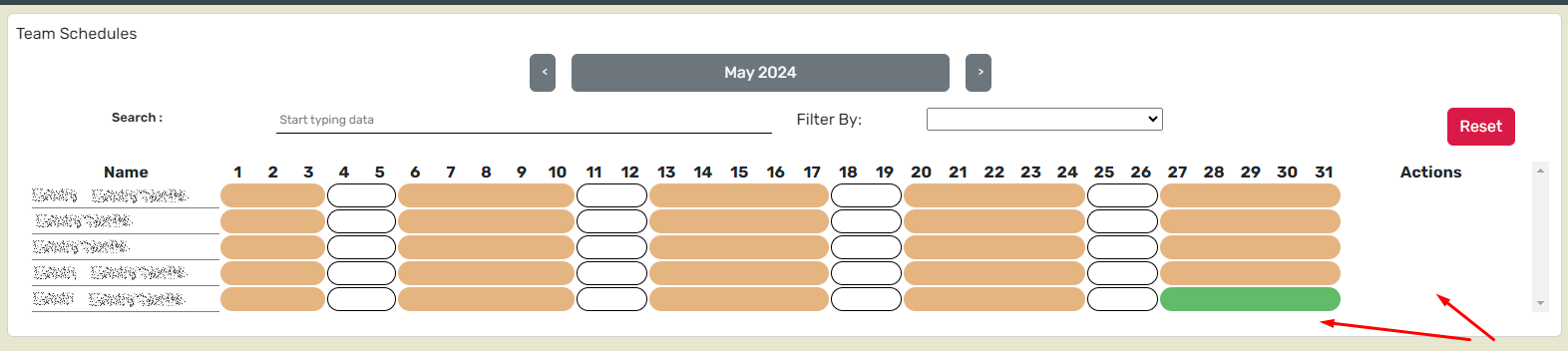
The manager will see the list of members of their team for a calendar month (current month by default).
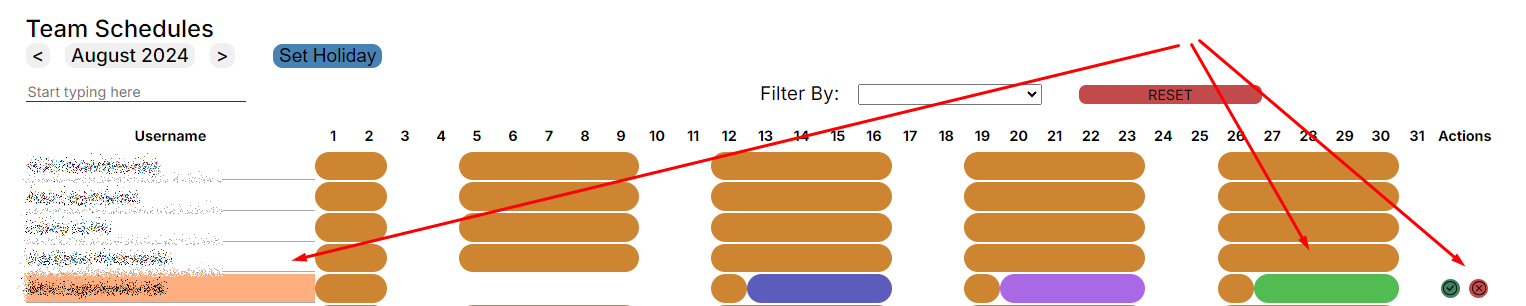
- Users who have made changes to their work schedule will be highlighted in red, and the manager can approve or reject changes as shown in the screenshot below:
The manager can independently customize schedules for contractors in the team.
To do this, select or find the contractor in the list and click on them.
This leads to the My schedule section on the selected user.
Highlight the dates with the mouse cursor, edit the schedule:
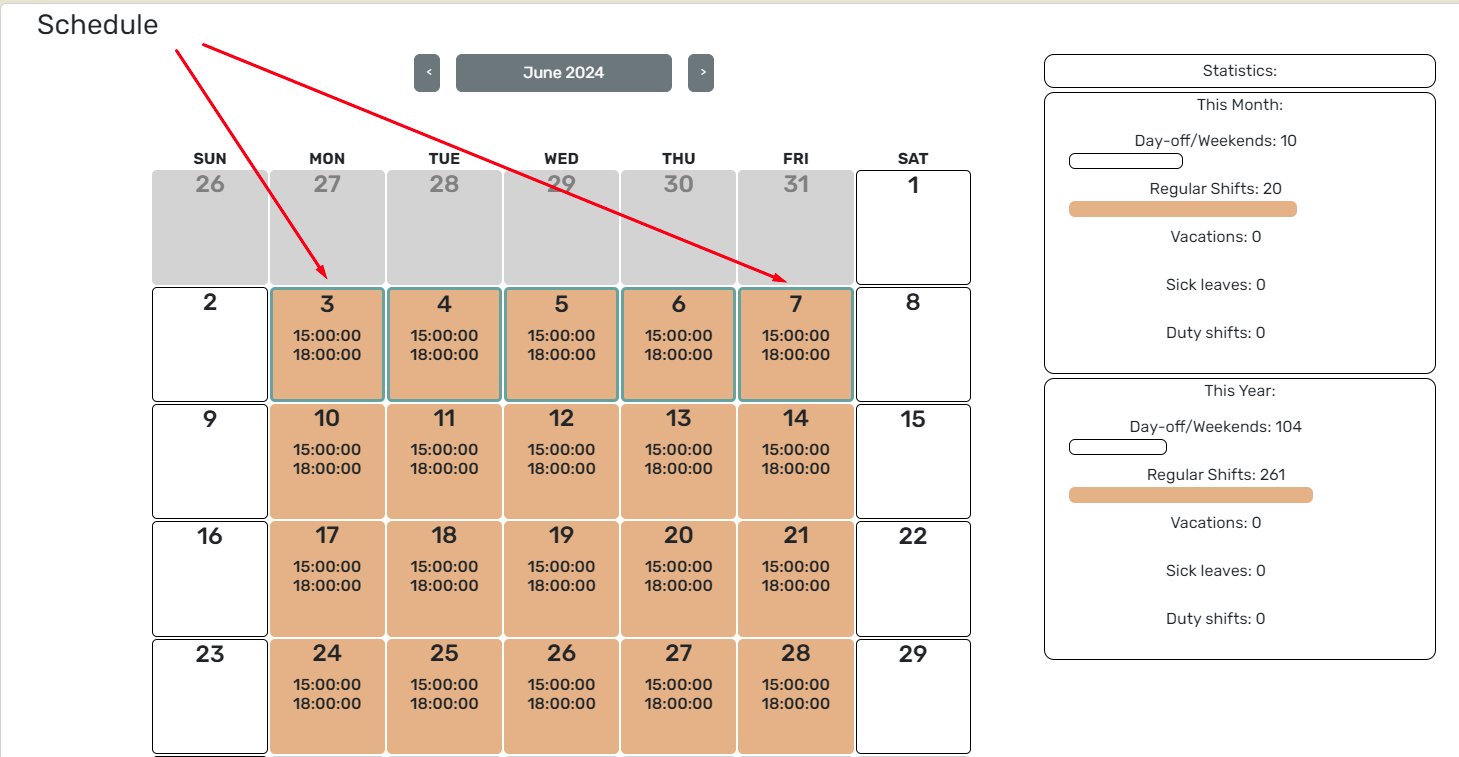

Important: in this case, the change of the contractor’s schedule is applied immediately, without the need for confirmation from the manager.