
“User profile” window.
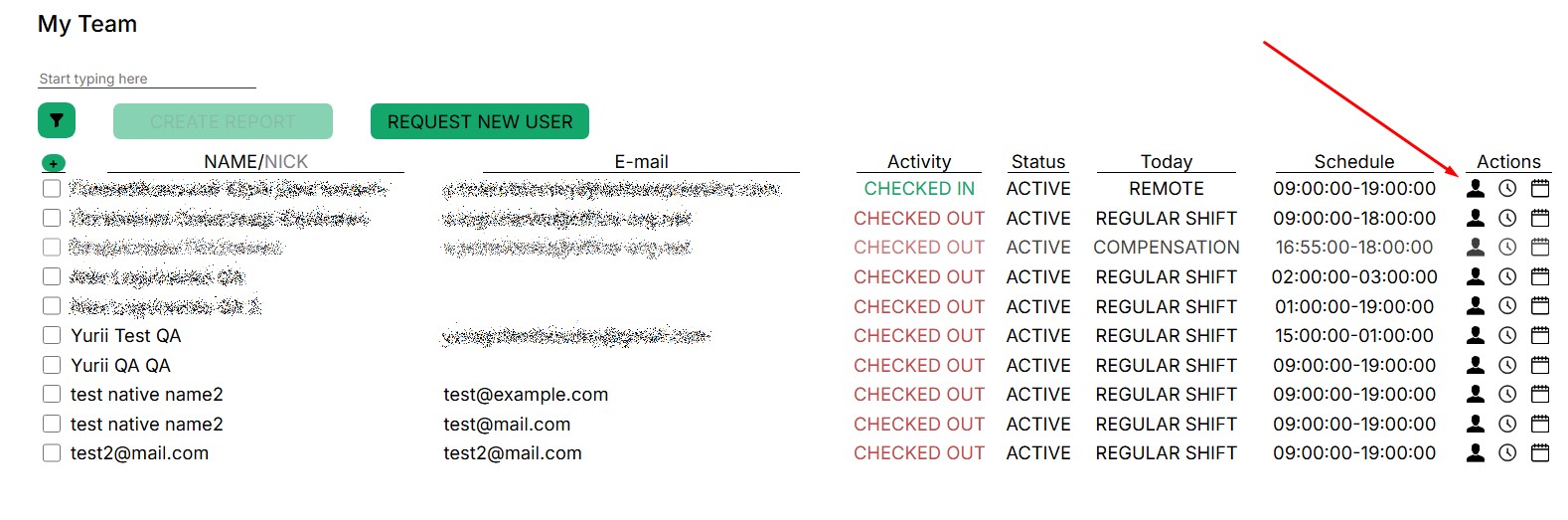
This section contains basic information about the user profile that has been added to the Action Tracker system.
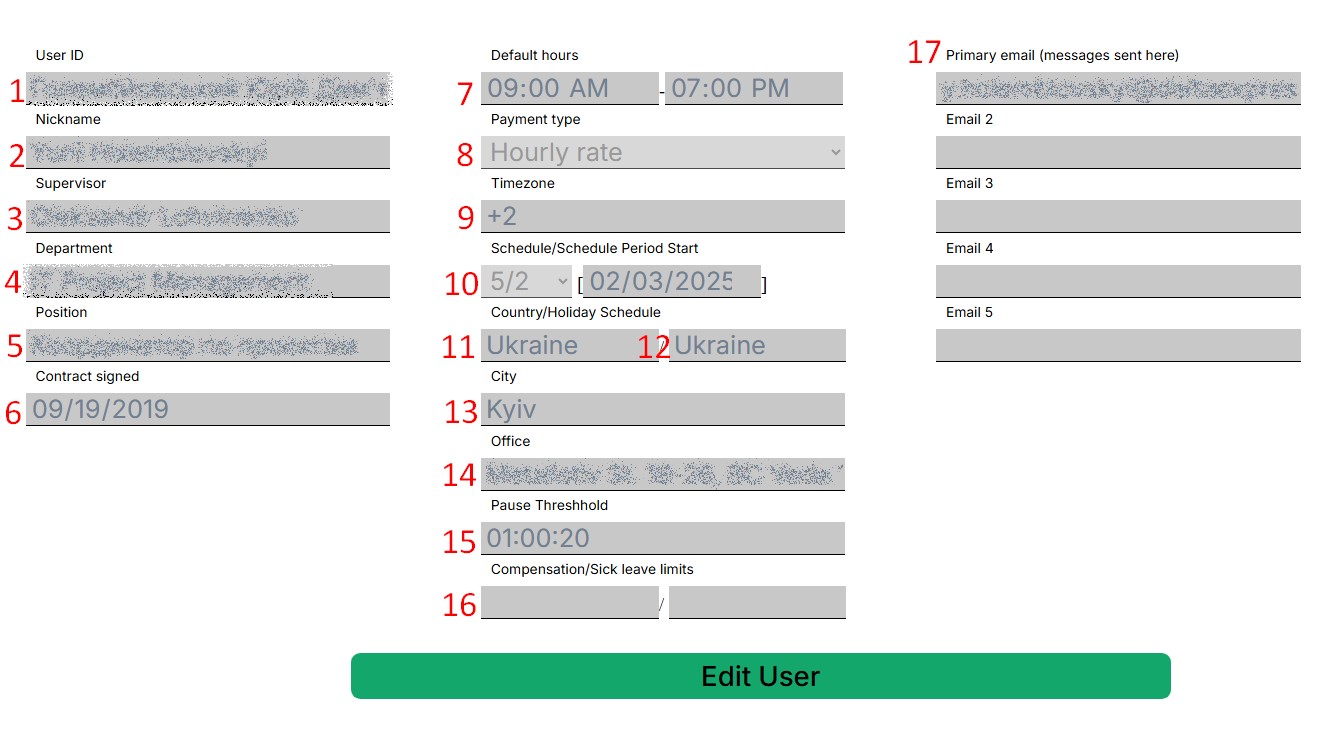
The manager can see all user information entered into the database. If the information in the profile is incorrect, you need to contact support (email: support.team@a-tracker.net), or the manager can make corrections independently.
To start editing, click the "Edit user" button

To close the “User profile” window and go back, click the arrow in the upper left corner, as shown in the screenshot.
To edit a data field you need to point the cursor over the input field or select text you want to edit and perform typing new data.
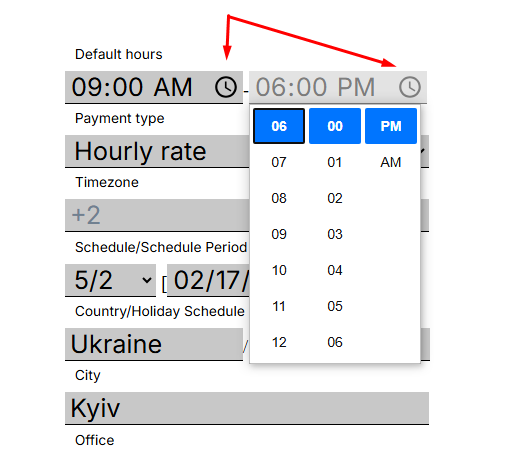
To change “Schedule” fields simply click on the clock ico and select the correct time.
(Won’t work in firefox browsers as this feature is not supported by browser. For Firefox browser keyboard input available only)
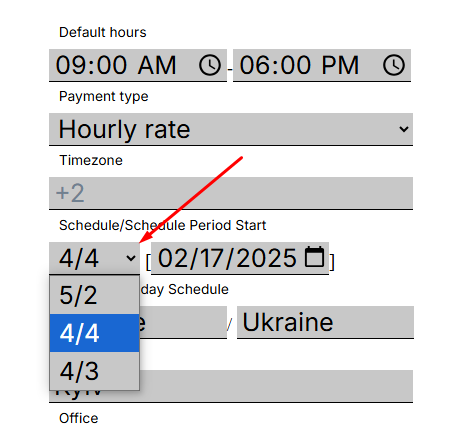
When editing the "Schedule/schedule period start" schedule, it is important to set the start date of the schedule after selecting a specific schedule
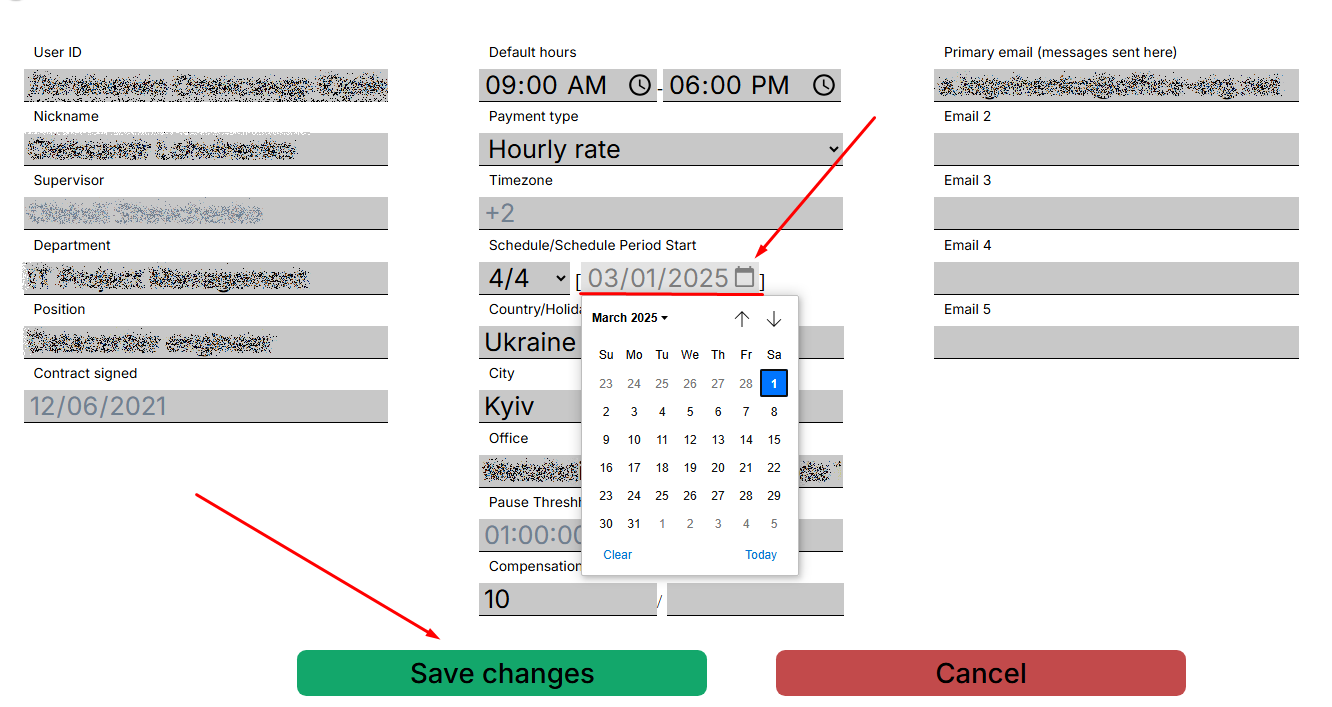
Make edits and be sure to save the data
After saving, the changes will be displayed in the calendar
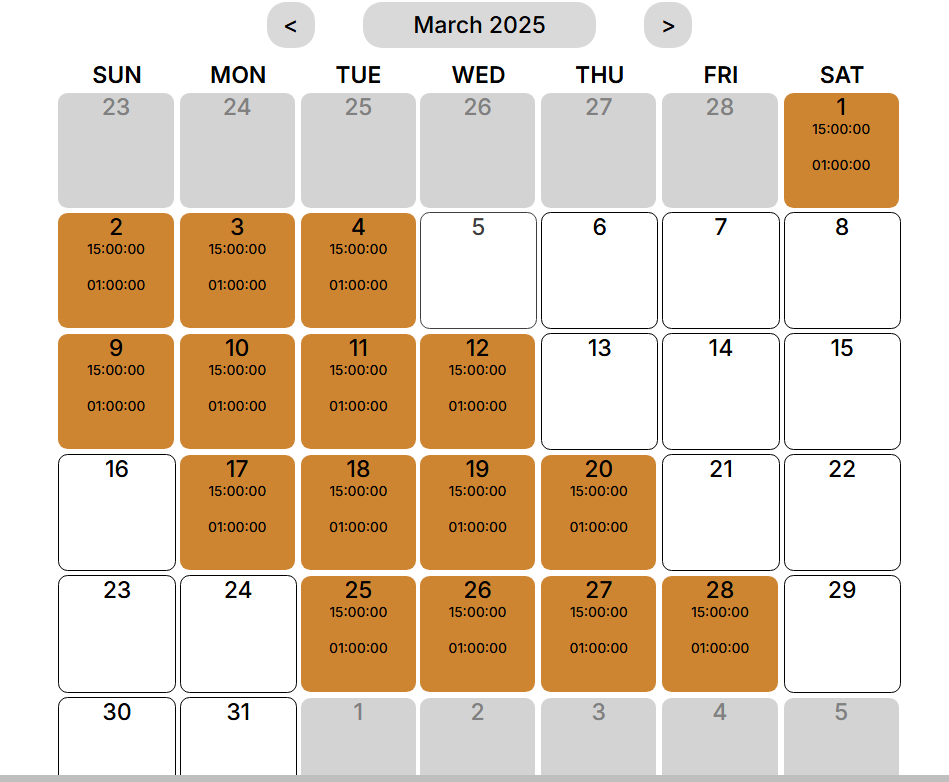
Important: a manually set schedule has a higher priority than an automatic scheduleschedule.
All fields can be edited, except:
- Timezone,
- Supervisor,
- Contract signed.
To save changes, click the "Save changes" button. After saving, the changes will be applied immediately.
To cancel the changes, click "Cancel" and close the window.