Action Tracker WEB Manager Manual English
Instructions for using the web version of the Action Tracker system
- My Team
- Overview
- Working with My Team
- “User profile” window.
- “Action History” window
- Schedule window — calendar and work schedule
- Request new user
- Contractor`s Data correction
- Change in payment type Hourly rate/Fixed income
- Reports
- My Team Schedules
- Overview
- Working with Team Schedule
- Auto Schedule 5/2, 4/4, 4/3
- Holiday Schedule
- Contractor`s Data and Schedule corrections
- holiday weekends
My Team
Overview
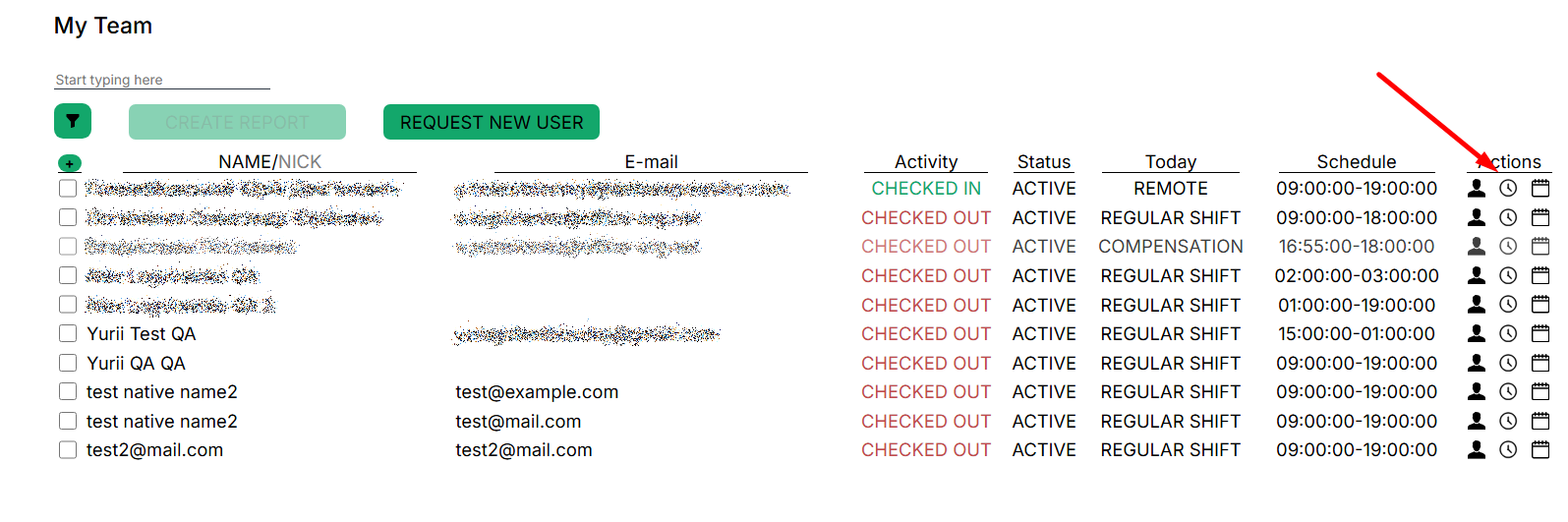
In the My Team section, the manager can view the most complete information on the team, namely these elements:
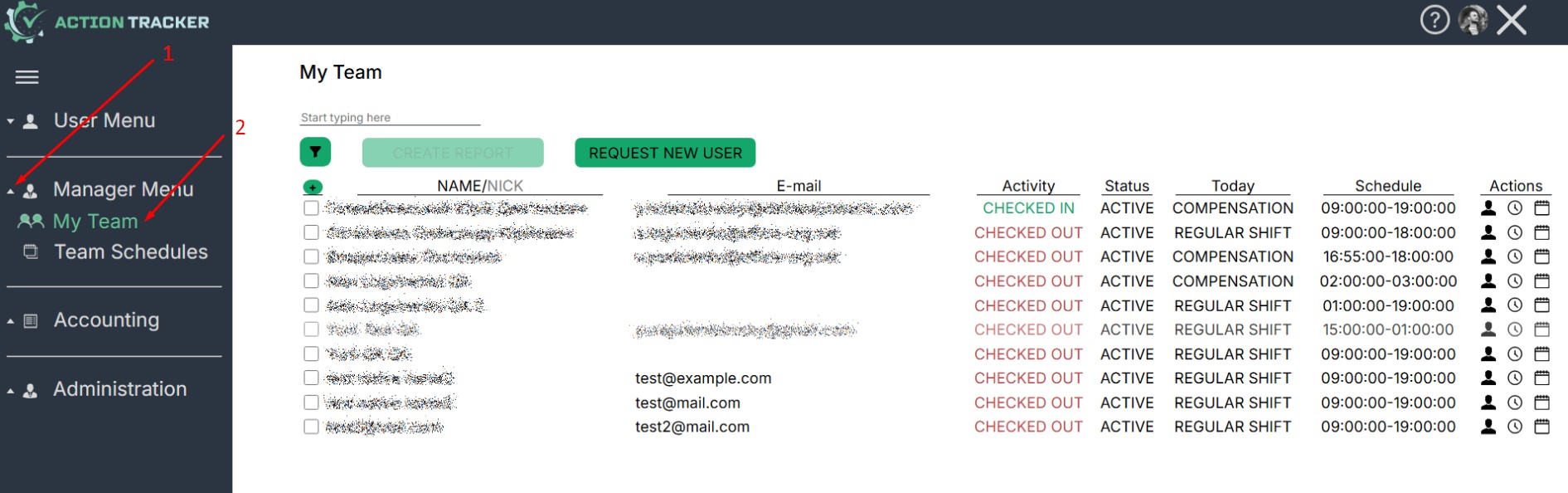
- user profile,
- activity history,
- calendar and work schedule — attendance records,
- activity,
- status in the system,
- schedule for today,
- schedule.
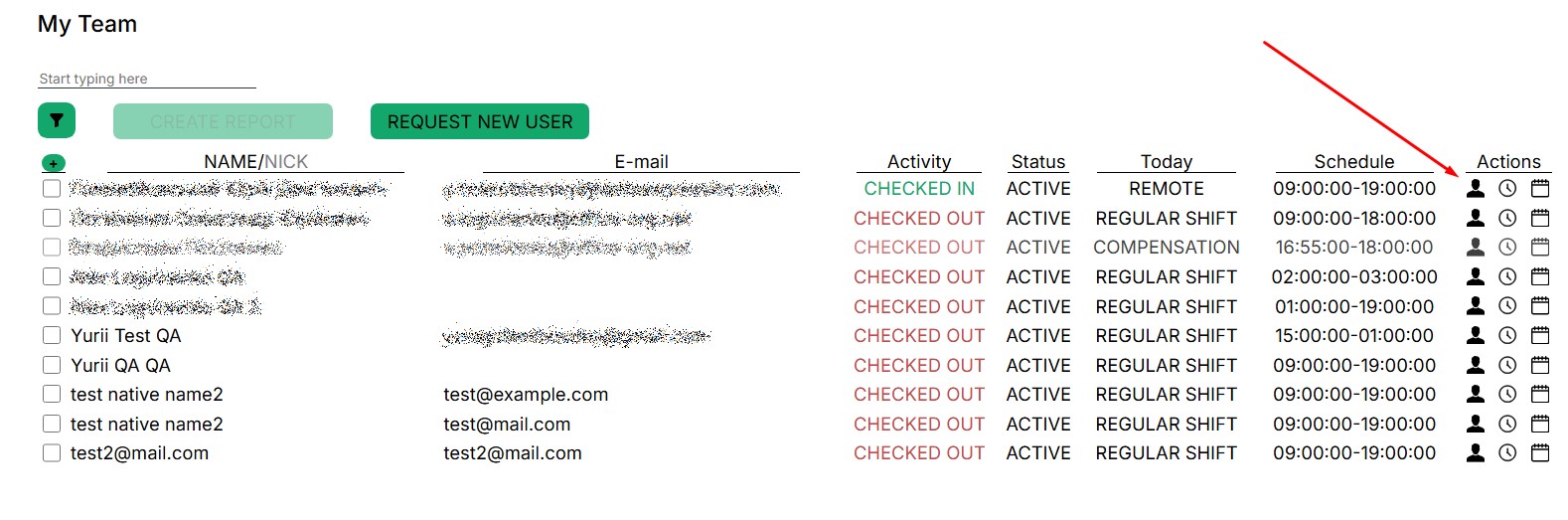
My Team Interface
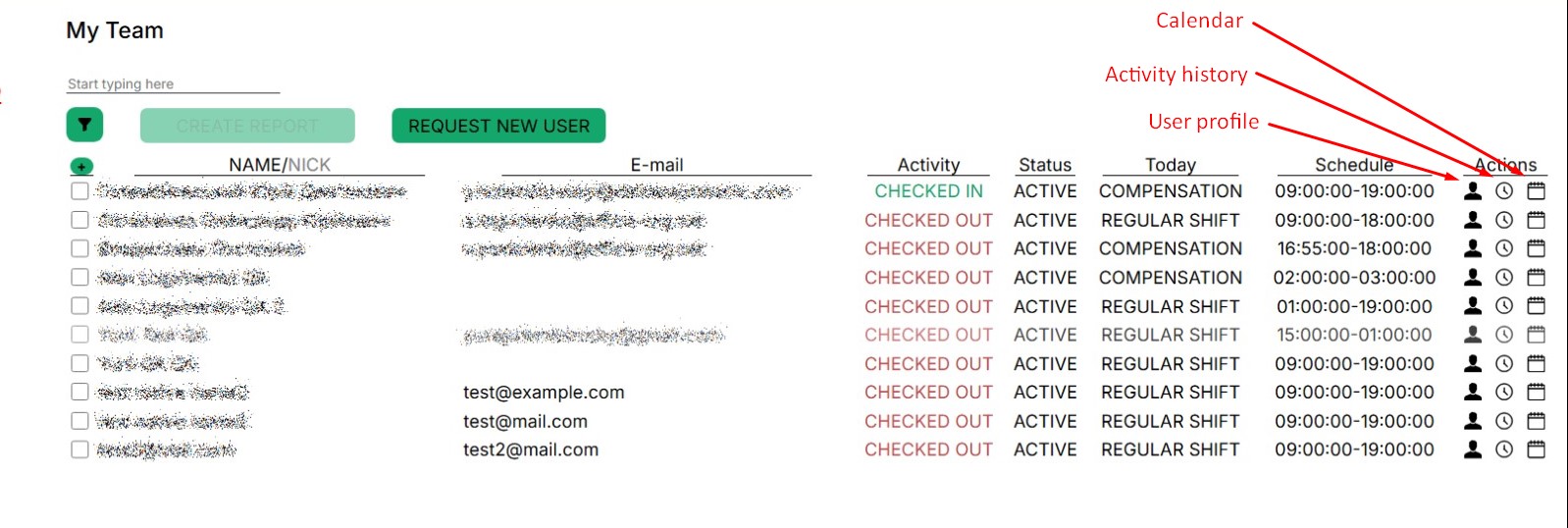
- User's first and second name,
- Email, user's primary email (additional email addresses are in the profile),
- action currently performed,
- status in the system,
- schedule assigned for today,
- work schedule,
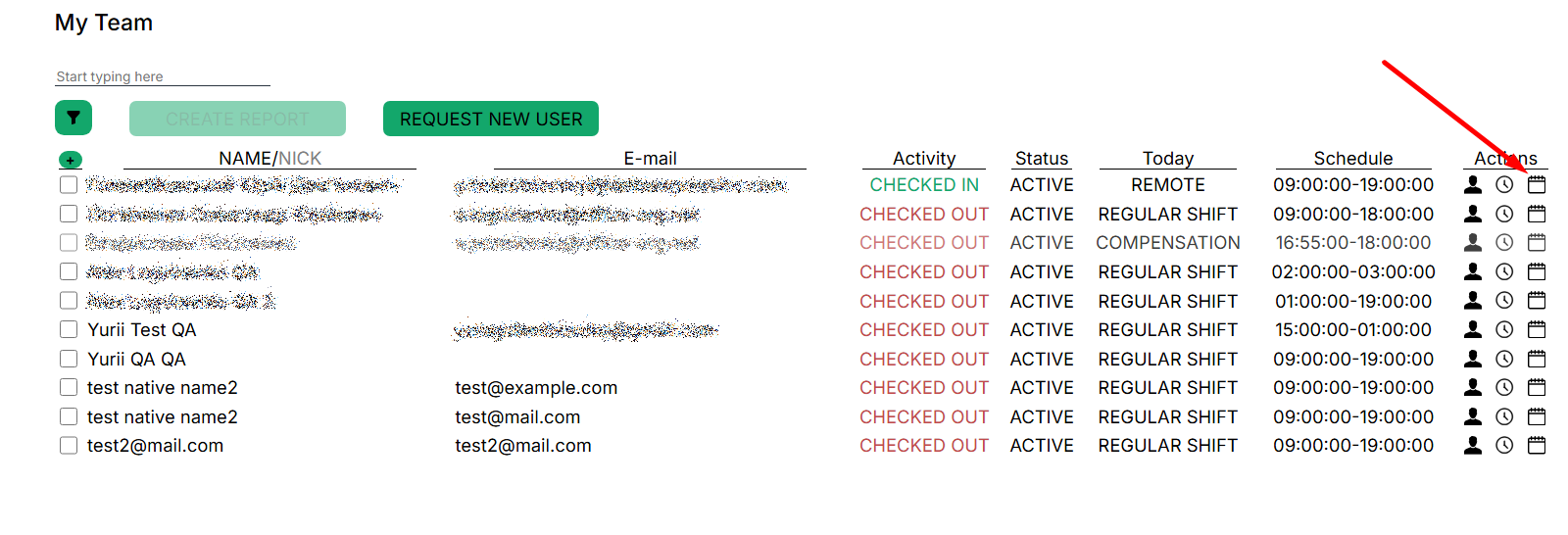
- user profile,
- activity history,
- calendar and work schedule — attendance records.
- create report button,
- request to create new user button.
- filter for displaying the list of contractors by the selected criterion.
Working with My Team
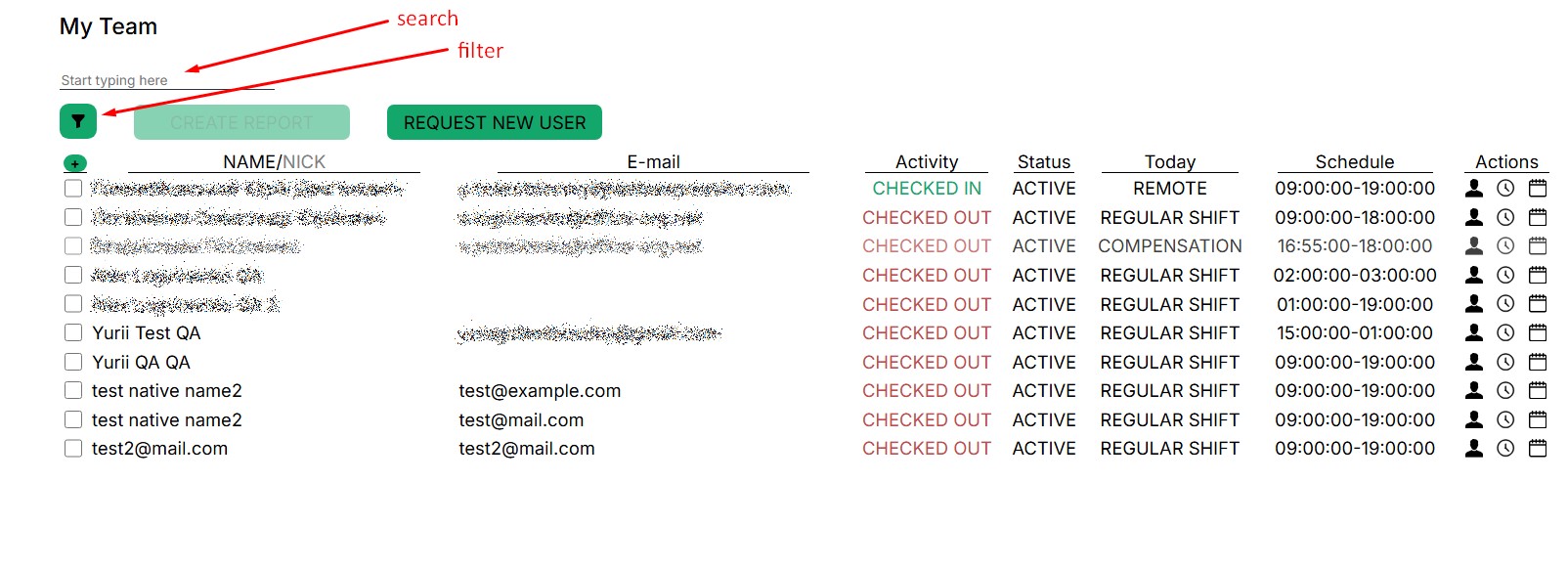
If the team is large, the easiest way is to use the search field. The search is performed on any user data from the profile (name, nickname, email). Just enter a few characters, and the system will start looking for matches.You can select a user from the provided list of commands
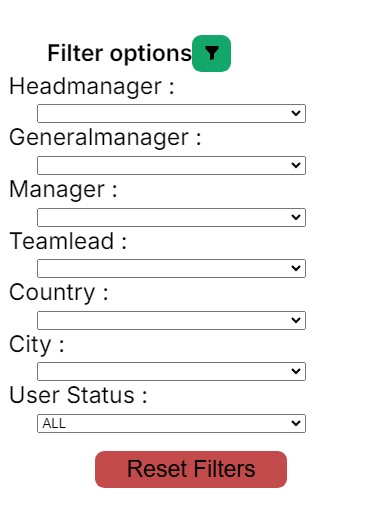
Or you can use the filter to filter the list of contractors by selected parameters..
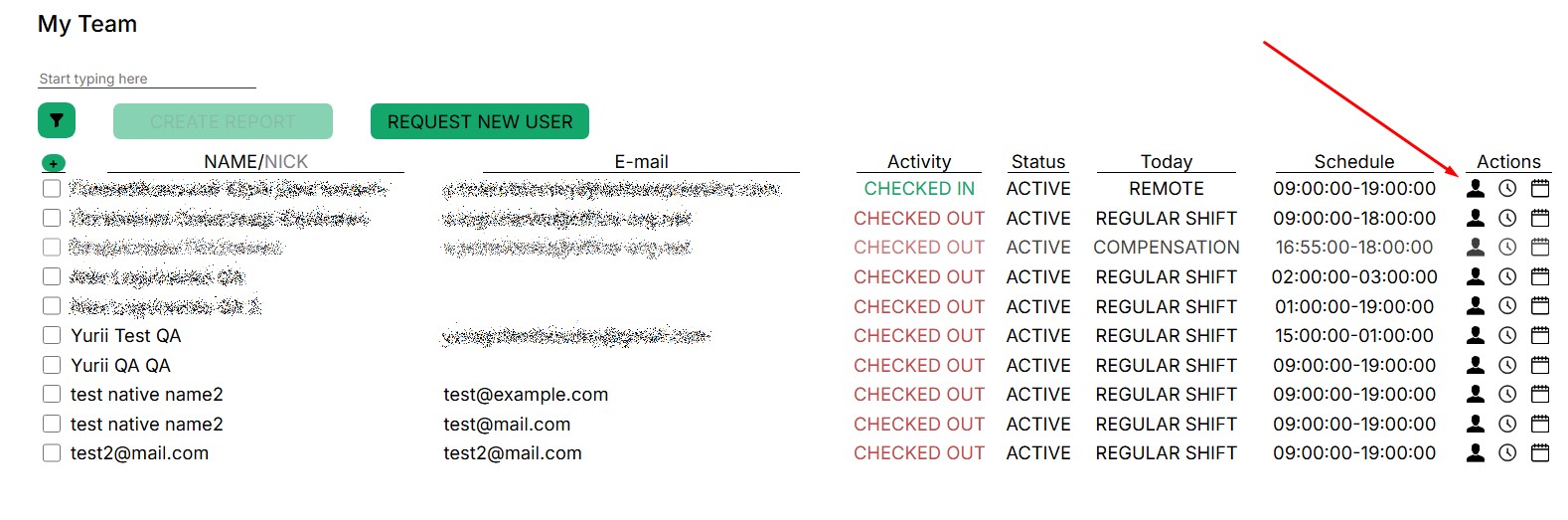
To view the profile of the selected user or additional menu, press the required button; a window with detailed information will open.
“User profile” window.
This section contains basic information about the user profile that has been added to the Action Tracker system.
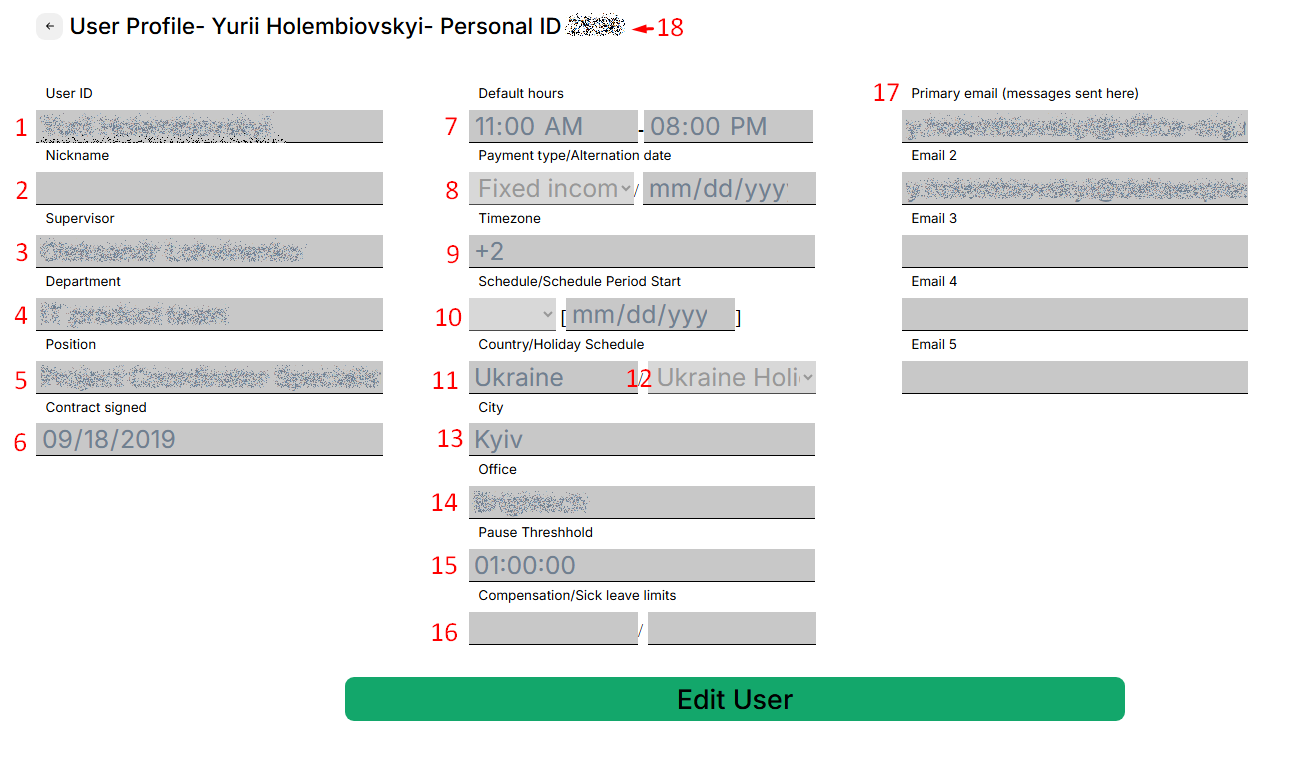
- First and second contractor`s name
- assigned nick name
- direct supervisor
- department
- position
- contract assigned date
- working schedule by business time zone
- paymant type: hourly rate/fixed rate
- busines time zone
- working schedule:weekdays/weekends, schedules`s start date
- country
- holiday schedule
- city
- office
- fixed lunch time
- limit of paid vacation/sick leave days
- primary and additional emails
- contractor`s personal id
The manager can see all user information entered into the database. If the information in the profile is incorrect, you need to contact support (email: support.team@a-tracker.net), or the manager can make corrections independently.
To start editing, click the "Edit user" button

To close the “User profile” window and go back, click the arrow in the upper left corner, as shown in the screenshot.
To edit a data field you need to point the cursor over the input field or select text you want to edit and perform typing new data.
To change “Schedule” fields simply click on the clock ico and select the correct time.
(Won’t work in firefox browsers as this feature is not supported by browser. For Firefox browser keyboard input available only)
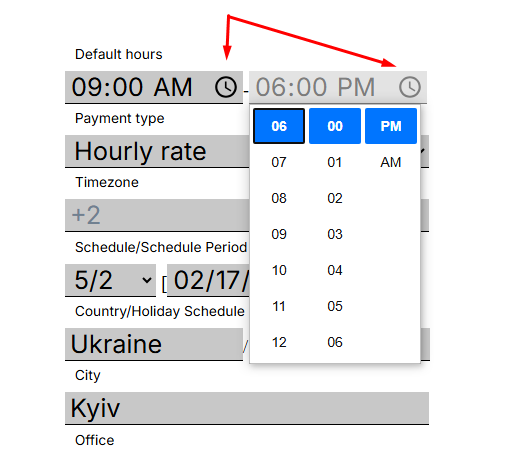
When editing the "Schedule/schedule period start" schedule, it is important to set the start date of the schedule after selecting a specific schedule
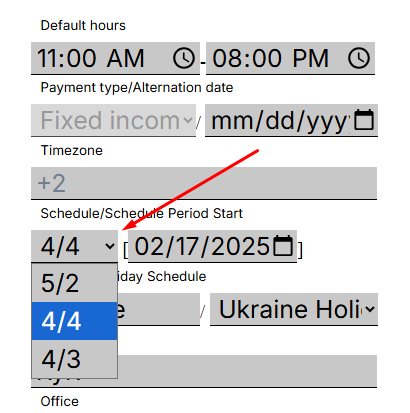
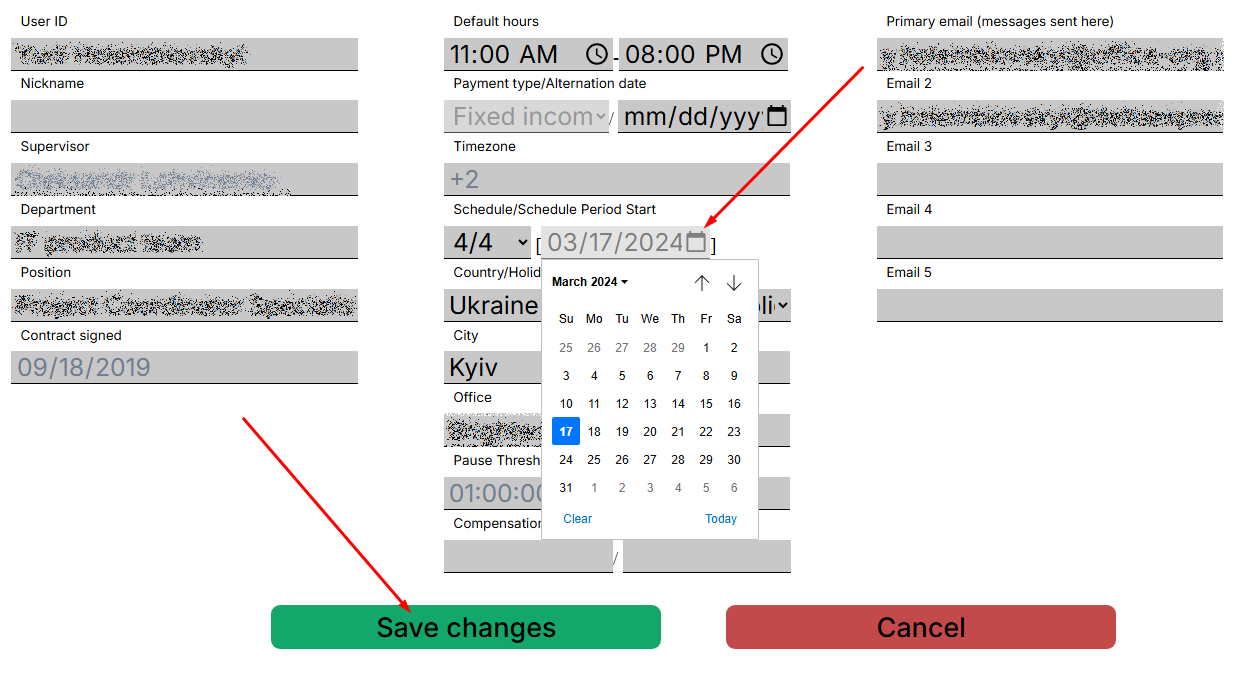
Make edits and be sure to save the data
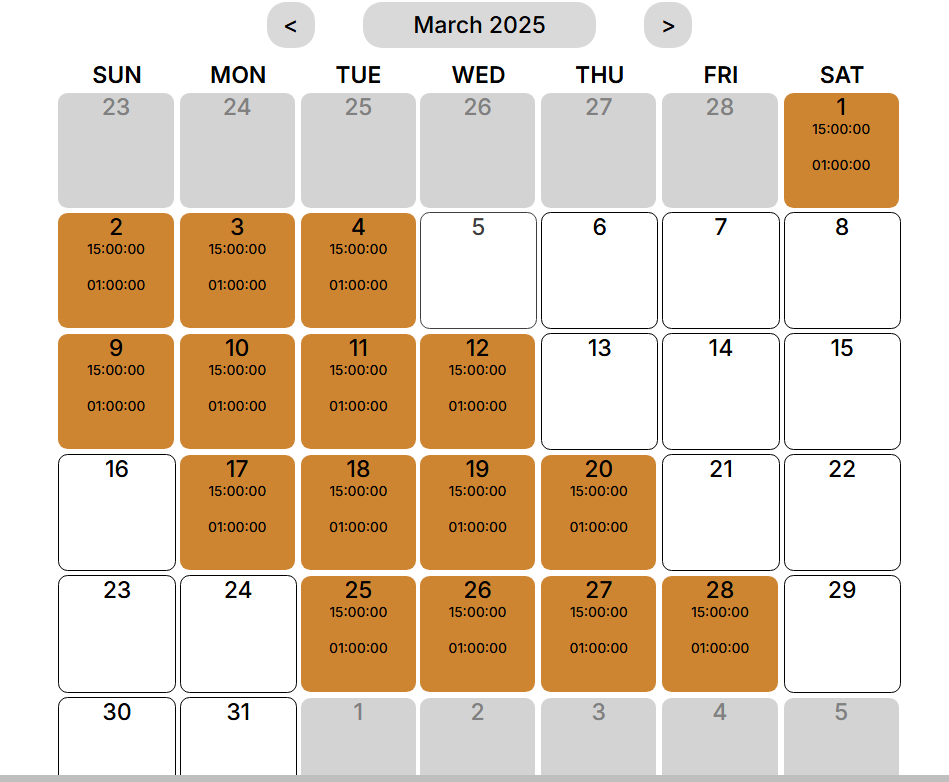
After saving, the changes will be displayed in the calendar
Important: a manually set schedule has a higher priority than an automatic schedule.
All fields can be edited, except:
- Timezone,
- Supervisor,
- Contract signed.
To save changes, click the "Save changes" button. After saving, the changes will be applied immediately.
To cancel the changes, click "Cancel" and close the window.
“Action History” window
The selected user’s check-in, check-out, pause start, and pause stop data is accessible from this window. To close the window, press the arrow in the upper left corner.

You can filter events by date by specifying the period of interest and the type of event.


When the period and type of the event are selected, press the “Filter” button to display the matching values:

Schedule window — calendar and work schedule
This window displays a calendar with the selected user’s working schedule marked. The color of each cell fill corresponds to an event. The supervisor can edit the work schedule calendar for the selected user.
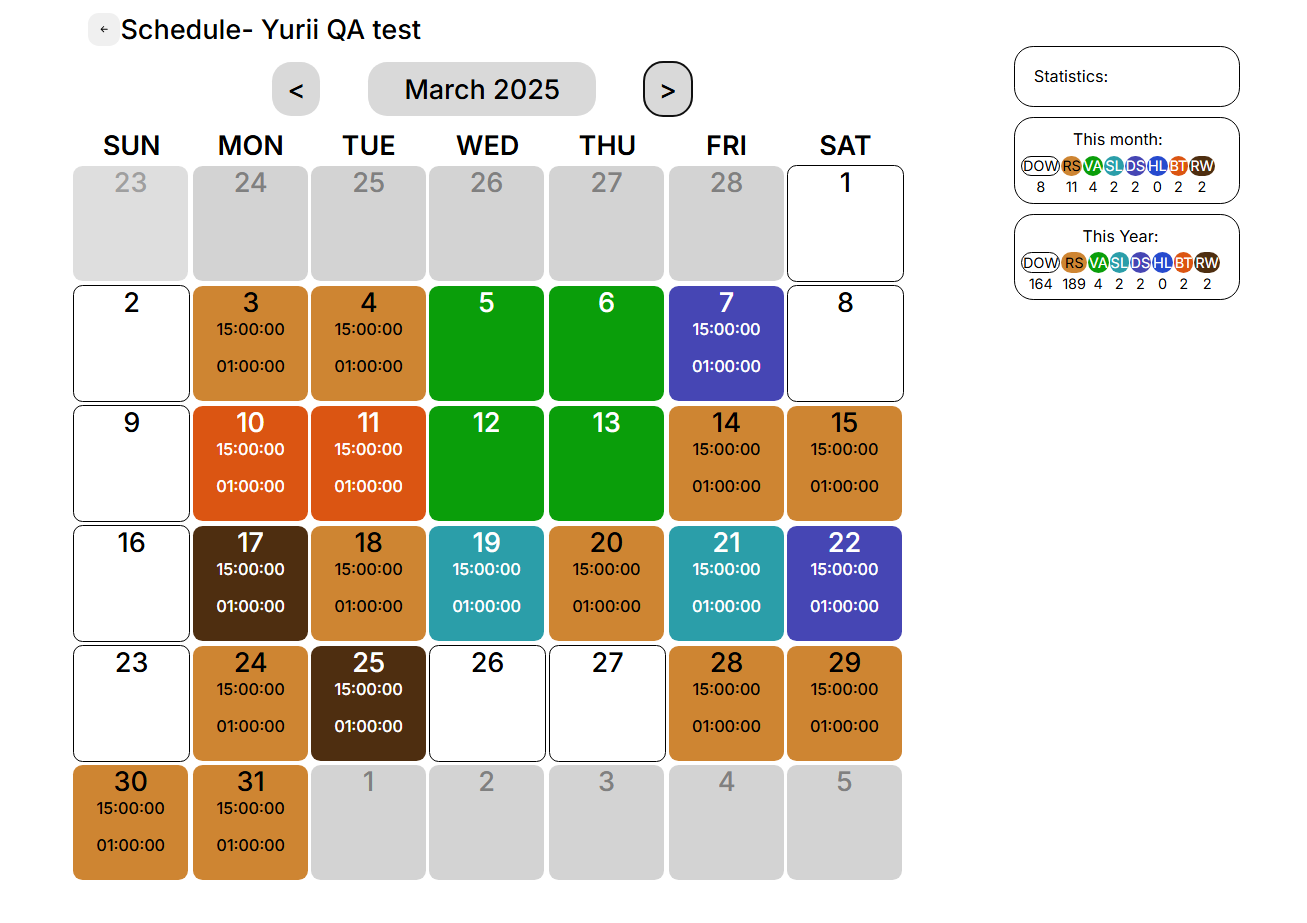
List of events in the calendar:
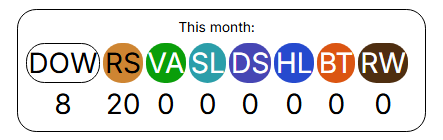
- DOW - DayOff/Weekend - absence, unpaid
- RS - Regular Shift - paid
- VA - Vacation - absence, paid
- SL - Sick Leave - absence, paid
- DS - Duty Shift - paid
- HL - Holiday - absence, paid
- BT - Business Trip - paid
- RW - Remote Work - paid, mark the day of work from home
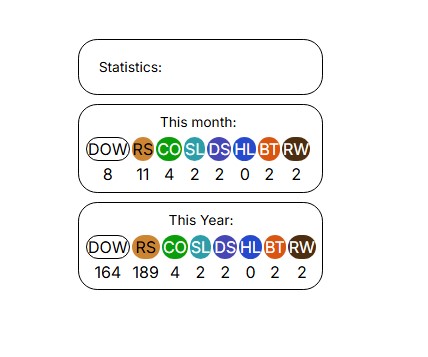
Detailed editing of a user's work schedule is described in the "My team Schedule" section.
Request new user
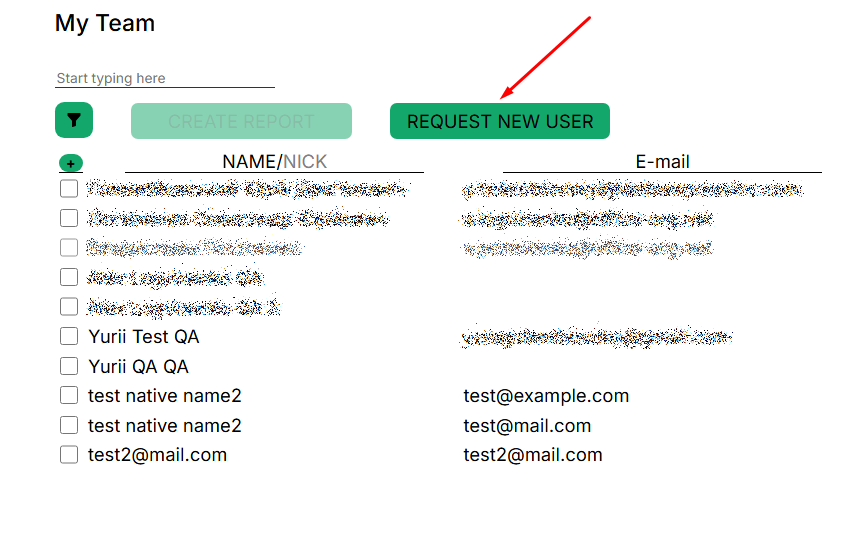
You need to click the button, then a window with fields to fill in will open.
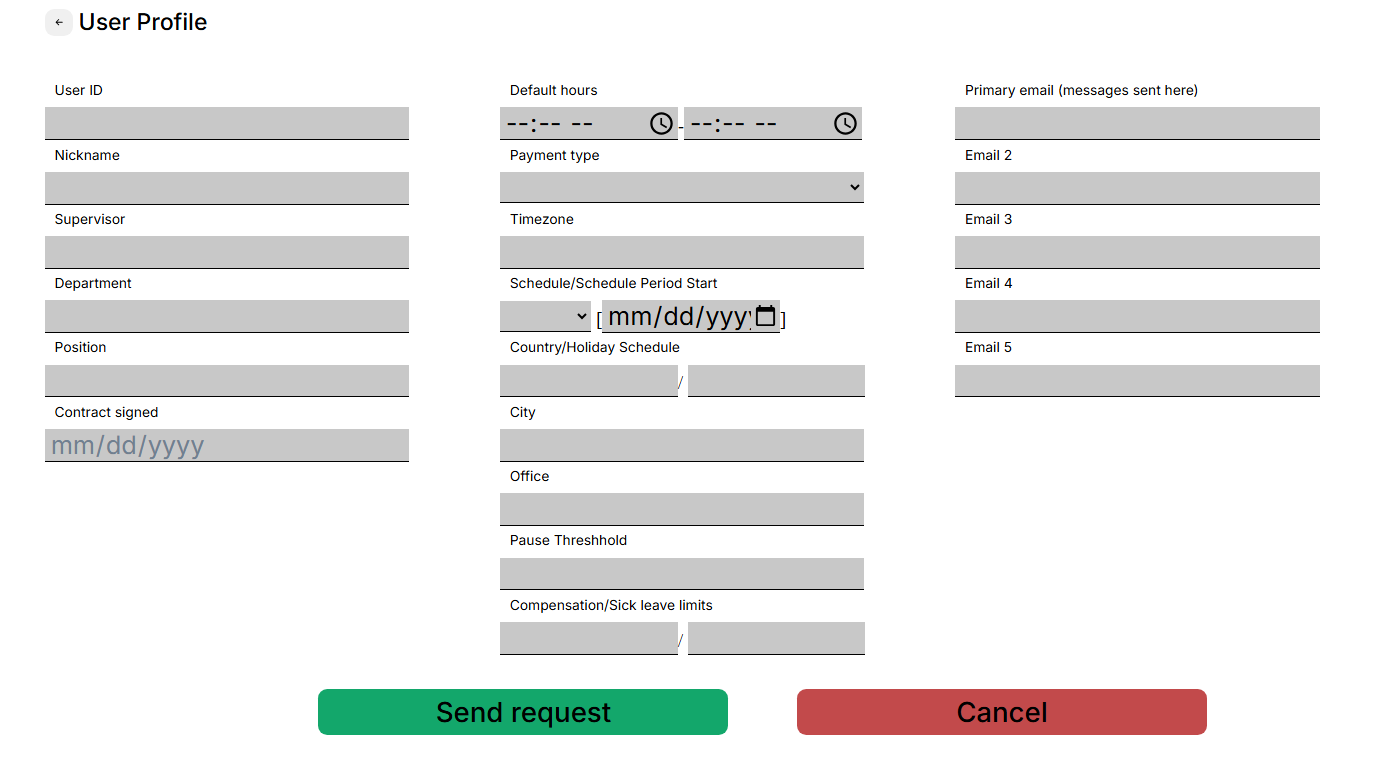
Please fill in all the fields as much as possible and click the “Send request” button, the request will be sent to technical support for processing.
Contractor`s Data correction
The Action Tracker system implements the functionality of making adjustments to the activity of contractors who are added to the team.
To start making adjustments, you need to go to “My team”, find the right contractor and open their calendar.
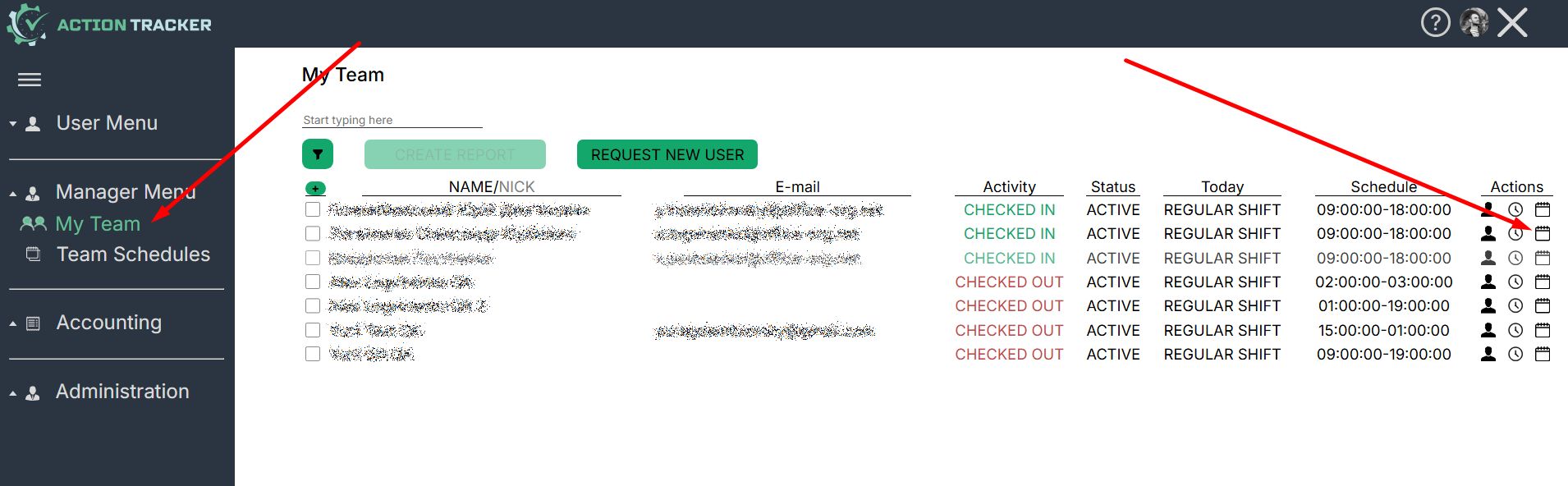
In the calendar, find the desired day, click on it.
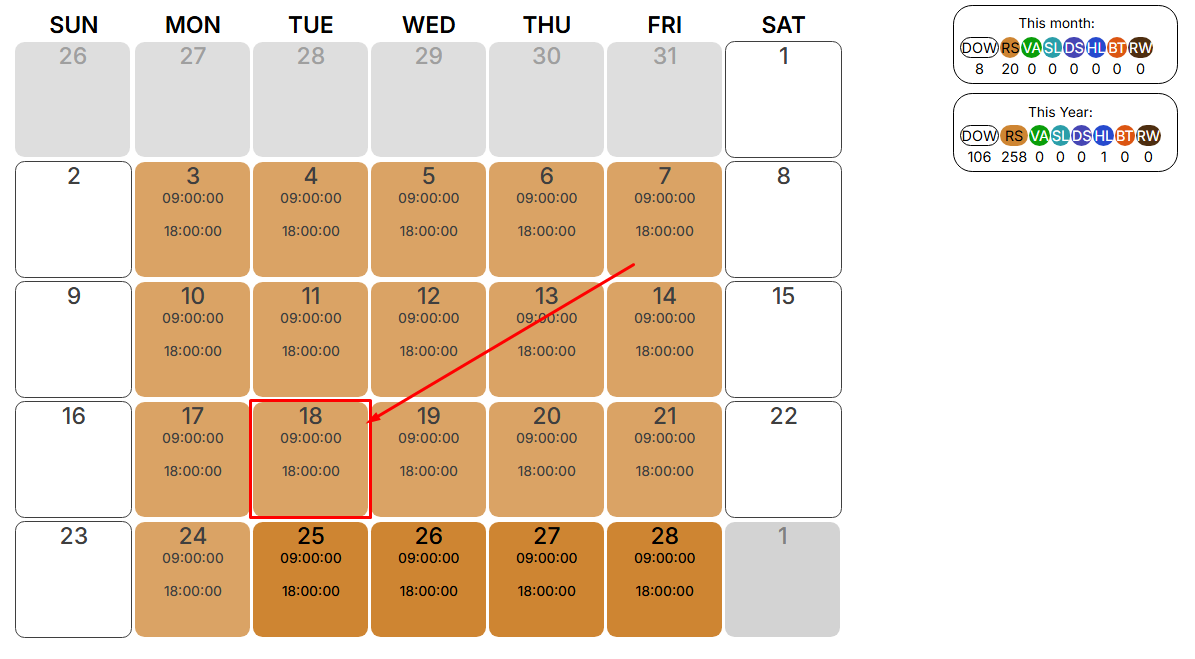
A window opens with the parameters that can be edited. Click the “EDIT” button, the fields that can be edited are highlighted.
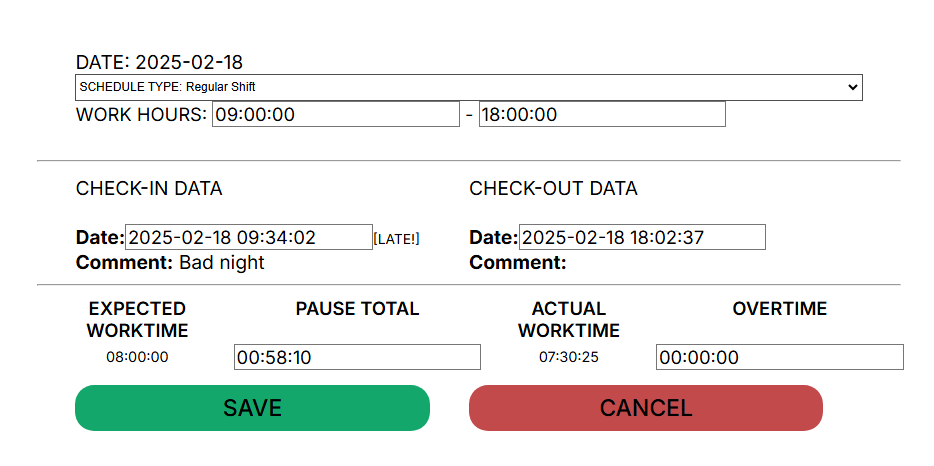
The following fields are available for correcting and entering data:
- Schedule Type
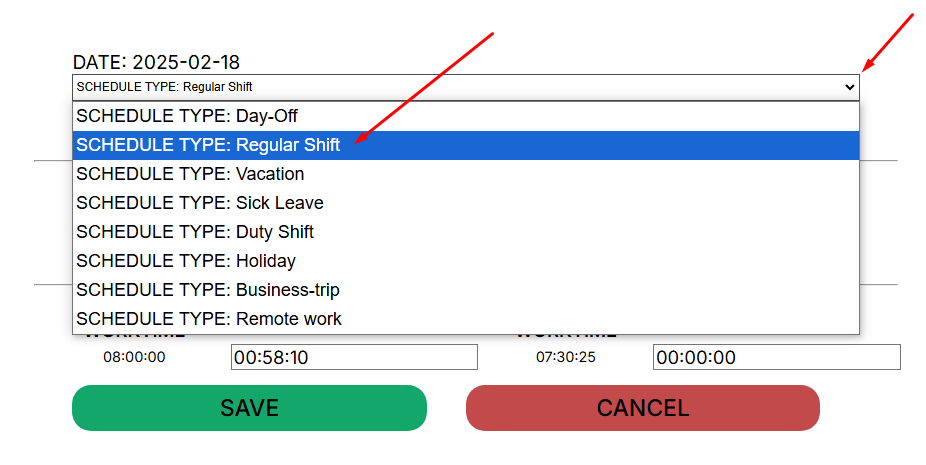
- Work Hours - work hours of reverse day employment
- Check-in/Check-out Data
- Pause Total
- Overtime
To save the corrected data, click the “Save” button. After saving the corrected data, the system will recalculate the hours.
When generating a report, the corrected data will be used and a mark will be set on the adjustments made.
Schedule Types:
- DOW - DayOff/Weekend - absence, unpaid
- RS - Regular Shift - paid
- VA - Vacation - absence, paid
- SL - Sick Leave - absence, paid
- DS - Duty Shift - paid
- HL - Holiday - absence, paid
- BT - Business Trip - paid
- RW - Remote Work - paid, mark the day of work from home
Important! You can only correct data for previous periods.
Supervisor cannot change the data himself.
You can only edit existing data: Check-in/Check-out.
Change in payment type Hourly rate/Fixed income
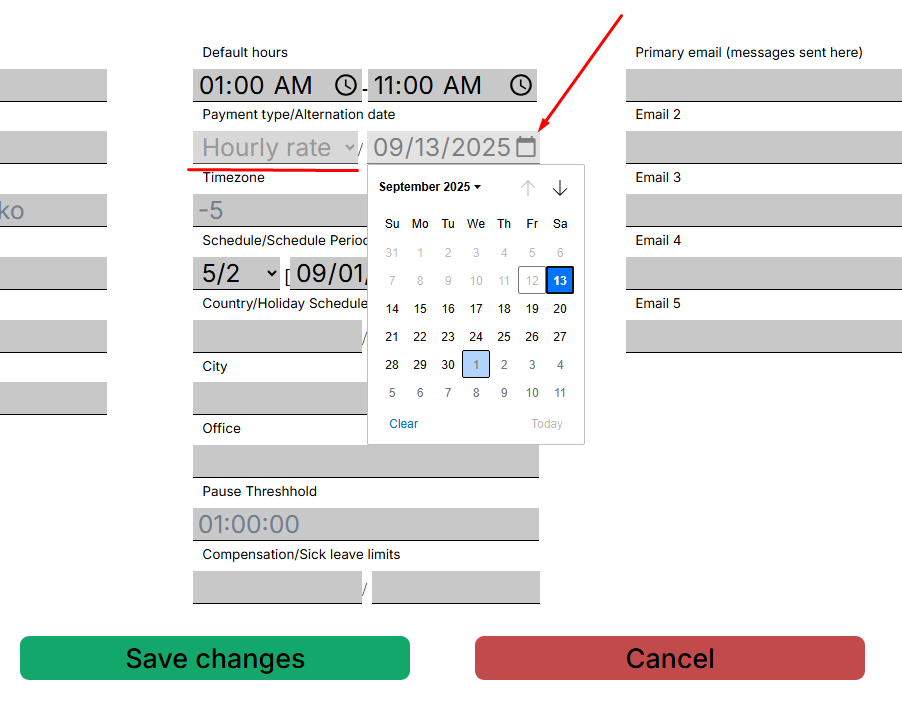
The Action Tracker system allows you to change the payment type in the contractor's profile to Hourly rate/Fixed income.
To change the payment type, open the profile of the relevant contractor, click on the date selection button - “Alternation date” and save the changes.
When the selected date arrives, the Action Tracker system will change the payment type for the contractor, after which reports will be calculated according to the corresponding algorithm for calculating working hours.
Reports
Important note
The Action Tracker system provides functionality that allows you to generate reports on the activity of contractors in a team for a period and download them in pdf and csv formats..
The system implements two types of reports that differ in the logic of calculating the time worked by marks Check-in/Check-out:
- Hourly Rate - implies payment by the hour.
- Fixed Rate - involves a flat rate of pay
Report Hourly Rate - applies to contractors who have an hourly payment type. You can check which type is set for a contract employee in their profile
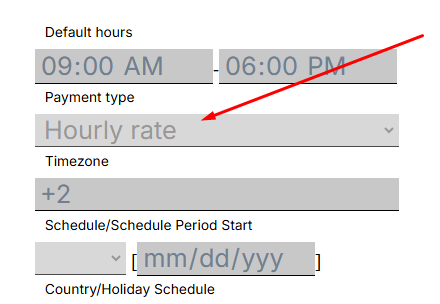
Key features of the report Hourly Rate:
- The total time between the executed Check-in та Check-out
- A fixed 1-hour pause is automatically deducted from the total time of the work shift.
- Overtime, are automatically recorded in the report.
- The manager may include unrecorded overtime in the contractors employment schedule.
Report Fixed Rate - applies to contractors whose payment type is fixed rate. You can check which type is set for a contractor in his profile
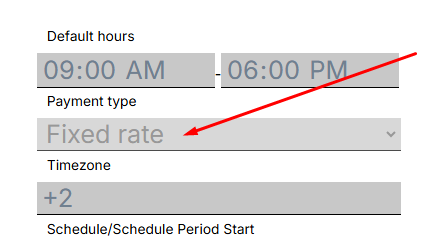
Key features of the report Fixed Rate:
- The report takes the hours specified in the contractor`s schedule.
- A fixed pause of 1 hour is automatically deducted from the working hours defined in the employment schedule.
- Overtime, are not recorded in the report.
- Overtime hours are entered manually by the manager.
Important: it is not recommended to generate a report for a period longer than 30 days, especially if you have a large team. This can take a lot of time.
Getting started with Reports
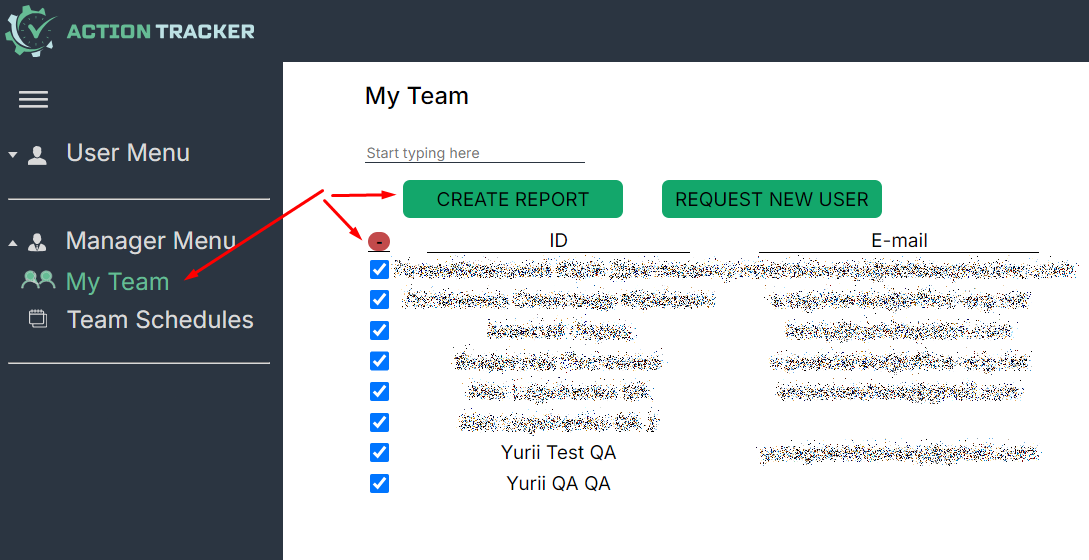
To generate the report, go to the "My Team" section, select the users for whom you want to get the report, and click "Create Report".

Specify the reporting period in the next window.

After you select the period, go to the generated report. To do this, press “Form report”.

In the next window is a report on selected users for the specified period.
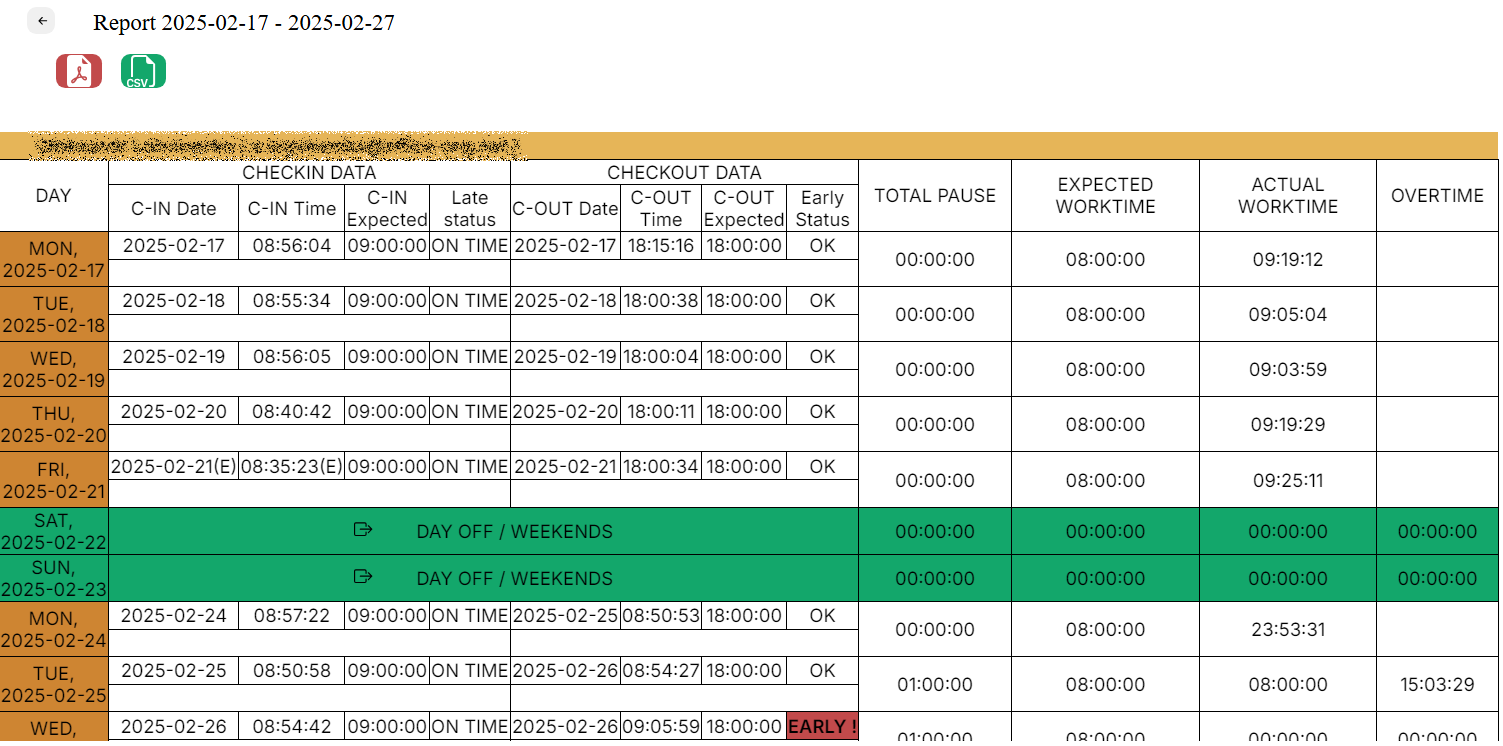
The report can be downloaded as a pdf or csv by pressing the button, as shown in the screenshot below.
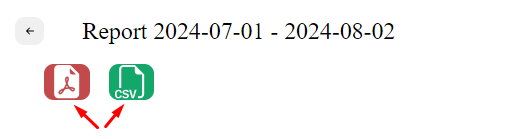
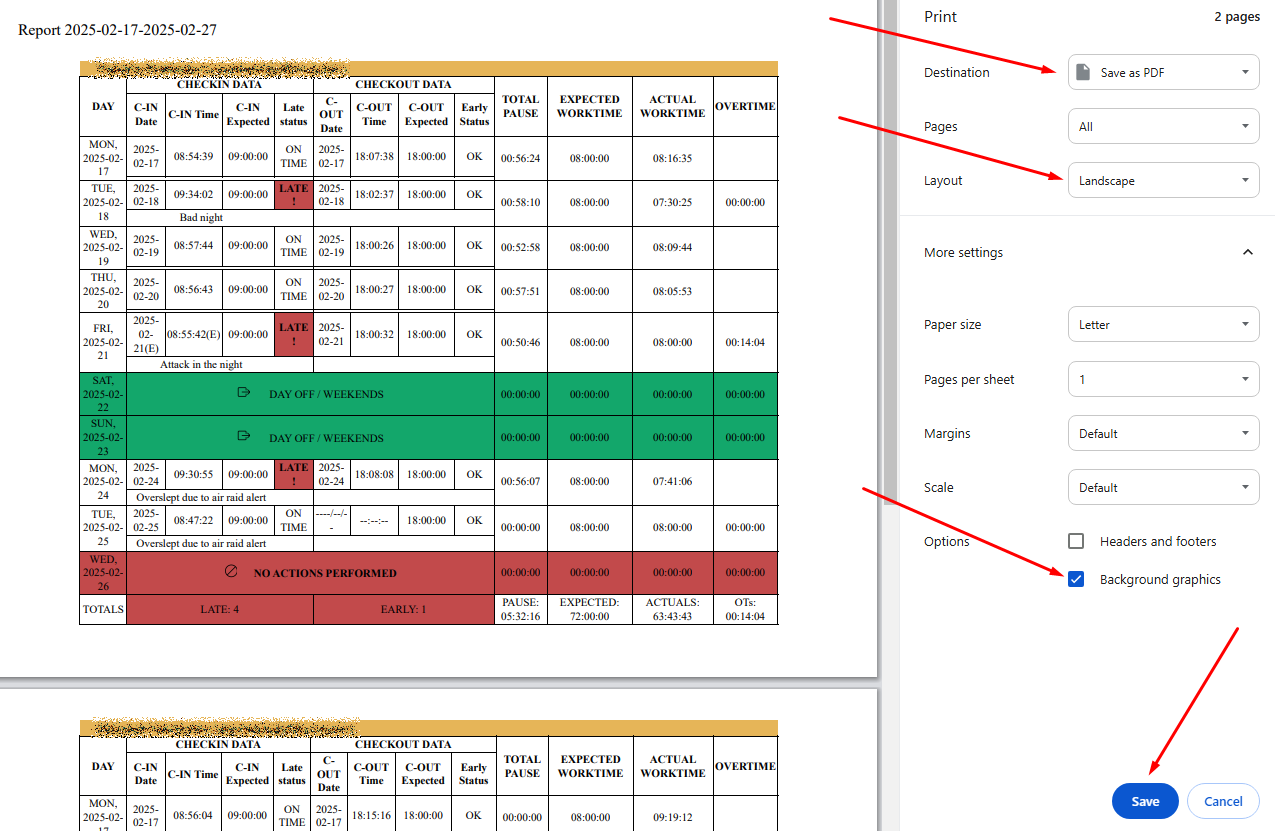
A new window will open in the browser, which allows you to download the report.
If you want background coloring to be printed as well, press “More settings” and check “Background graphics” in the “Options” section, as shown in the screenshot below.
My Team Schedules
Overview
The My Team Schedules section is designed to view and control the schedule of the entire team.
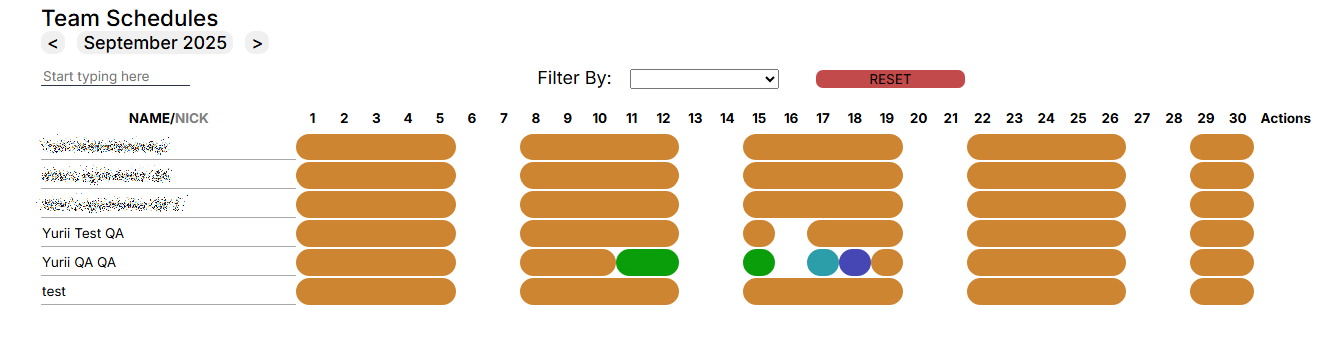
In this section, the manager can:
- View the list of team members.
- Check the schedules established for the team.
- See who made the changes to the work schedule and is waiting for approval.
- View statistics for a selected contractor.
- Change work schedule.
- Set holidays in the schedule.
Team Schedule Window.
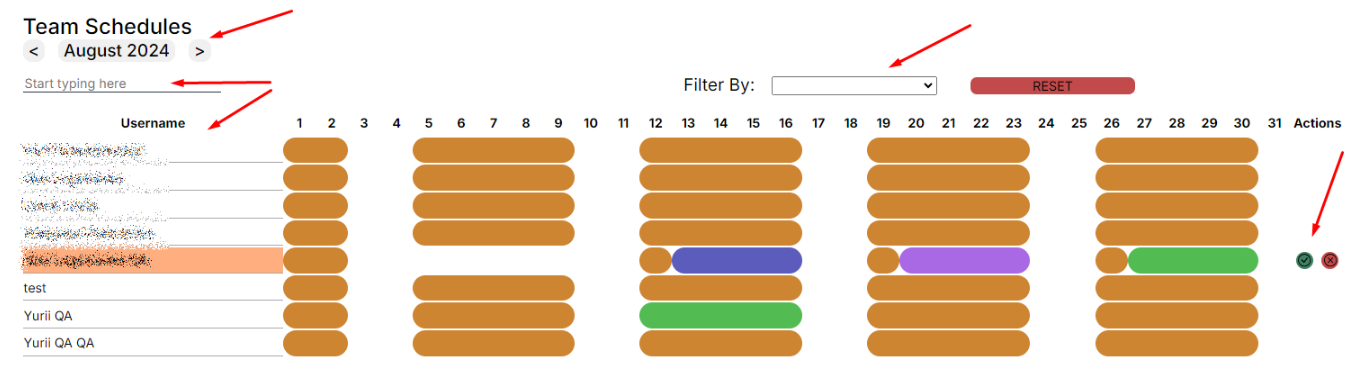
- displayed month,
- list of team members,
- search in the team,
- filter By,
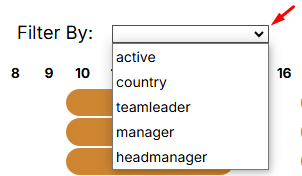
- calendar,
- actions — actions of the user awaiting the approval of schedule changes.
- Set Holiday - button to add Holiday (day off).
List of events in the calendar:
- DOW - DayOff/Weekend - absence, unpaid
- RS - Regular Shift - paid
- VA - Vacation - absence, paid
- SL - Sick Leave - absence, paid
- DS - Duty Shift - paid
- HL - Holiday - absence, paid
- BT - Business Trip - paid
- RW - Remote Work - paid, mark the day of work from home
Working with Team Schedule
The manager will see the list of members of their team for a calendar month (current month by default).
- Users who have made changes to their work schedule will be highlighted in red, and the manager can approve or reject changes as shown in the screenshot below:

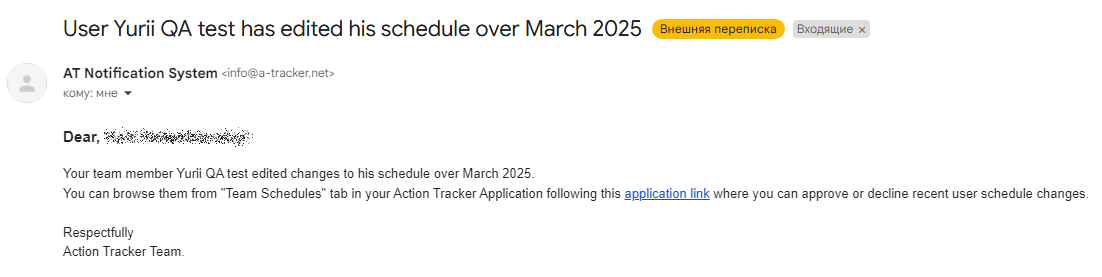
- Also, the Action Tracker system will send a notification to the manager's email (primary email) about the changes made by the team member
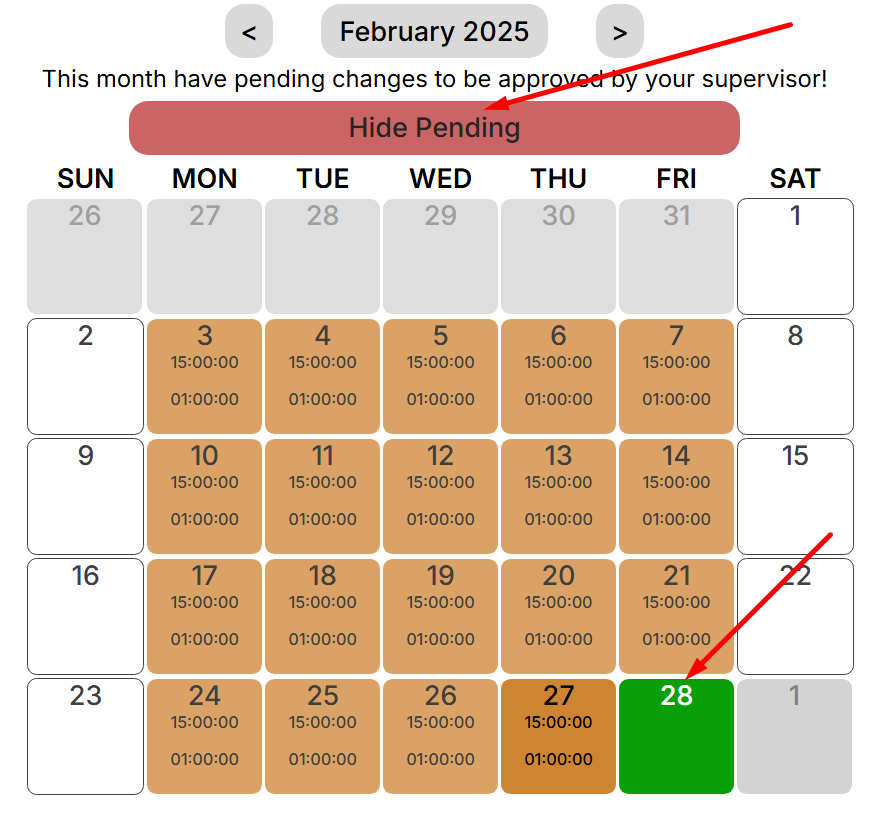
- To see what changes the contractor has made, you need to open their calendar. By default, the user's calendar displays the confirmed employment schedule, and to display the changes that are expected, click the button "Show Pending" :
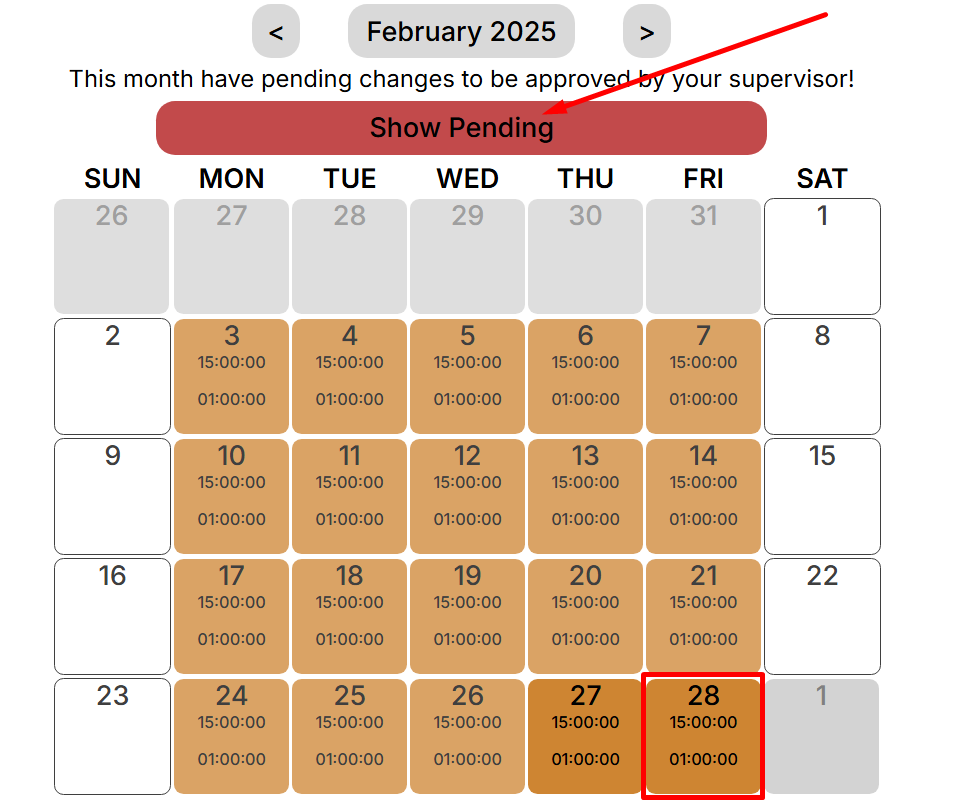
- Pending changes will be displayed:
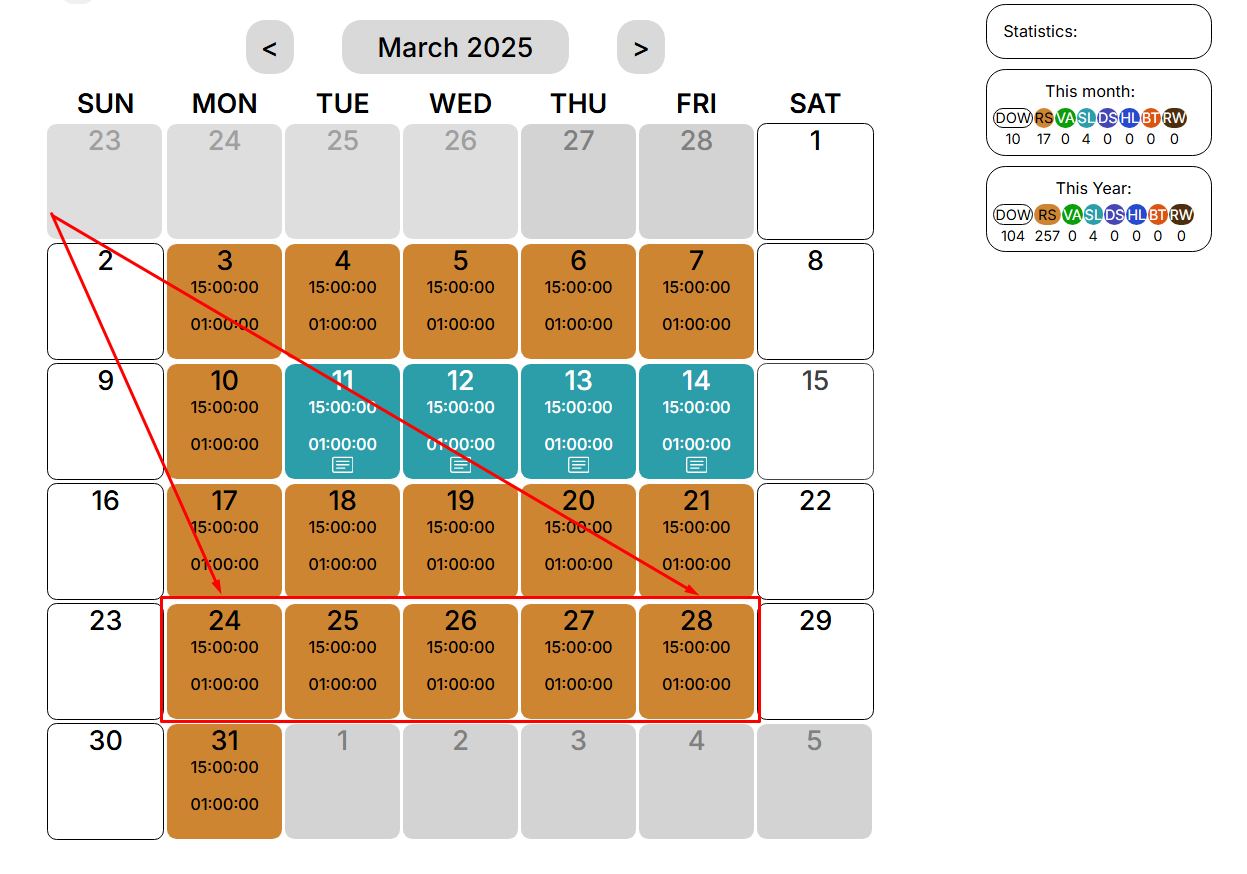
- The manager can independently customize the work schedule for contract workers in the team. To do this, select or find a contractor in the list and click on the highlighted field.
- We will go to the “My schedule” section of the selected user. Highlighting the necessary dates with the mouse cursor, you can proceed to editing the employment schedule:
Depending on the type of work schedule we set, you can add a comment or Custom Working Hours that will be applied to the selected days
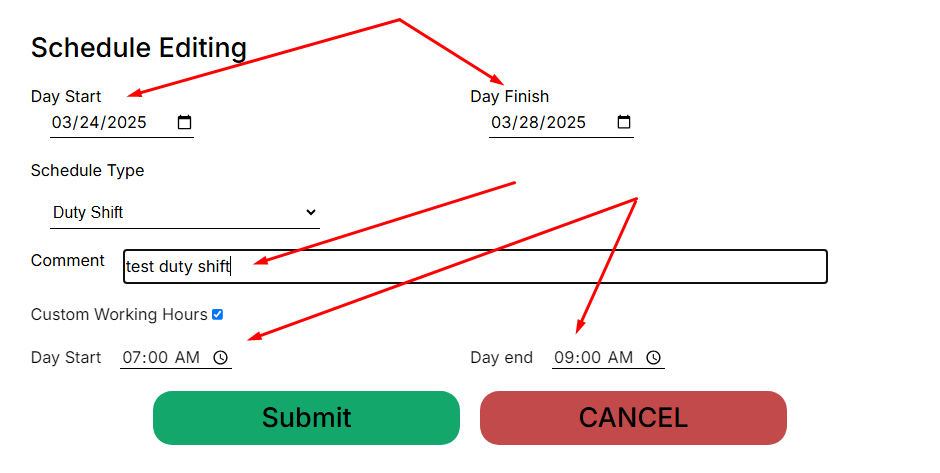
Important: in this case, the change in the contract employee's work schedule is applied immediately, without the need for confirmation from the manager.
After confirming the changes, the calendar will be updated. We can see that the “Duty Shift” work schedule type has been applied with Custom Working Hours 07:00am - 09:00am and the following comment entered.
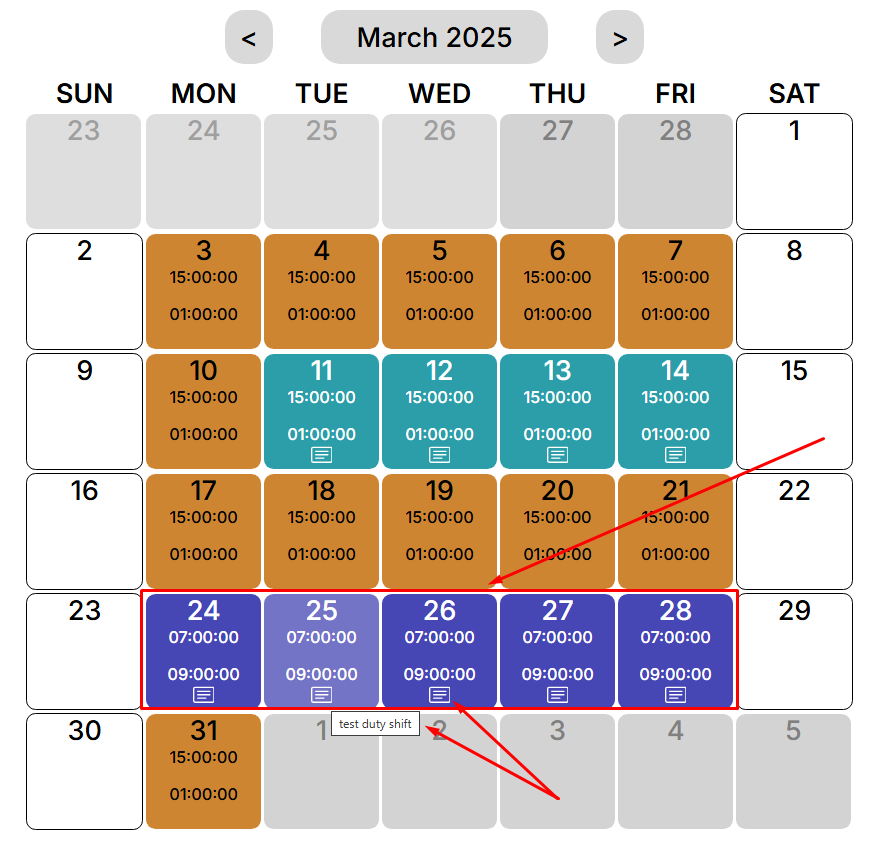
In the “Team schedule” menu, the employment schedule of the selected contractor is repainted in a different color, in accordance with the updated employment schedule
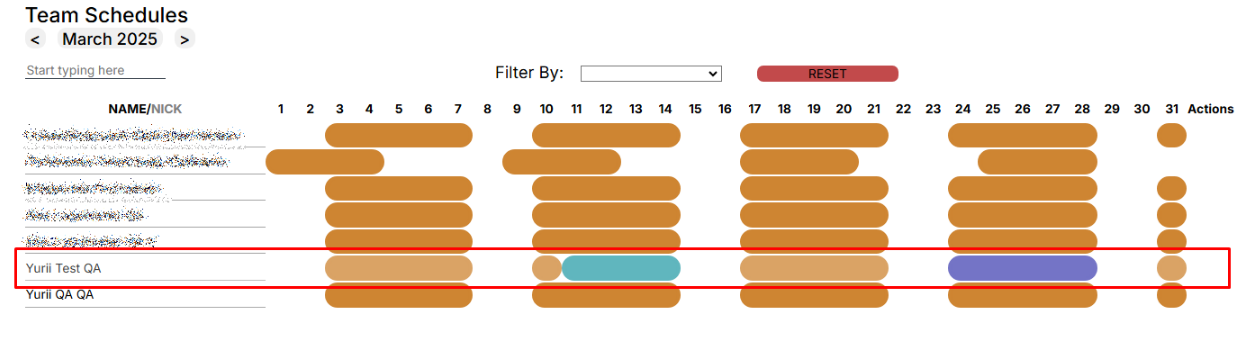
Auto Schedule 5/2, 4/4, 4/3
The Action Tracker system allows you to set up an automatic schedule for team members, with a start date for the schedule.
At this stage the following automatic charts are available for use:
- 5/2 - five-day work schedule
- 4/4 - 4 weekdays and 4 weekends
- 4/3 - 4 weekdays and 3 weekends
To set the automatic schedule you should go to “My Team” and open the profile of the selected contractor. Select from the drop-down list in the contractor's profile
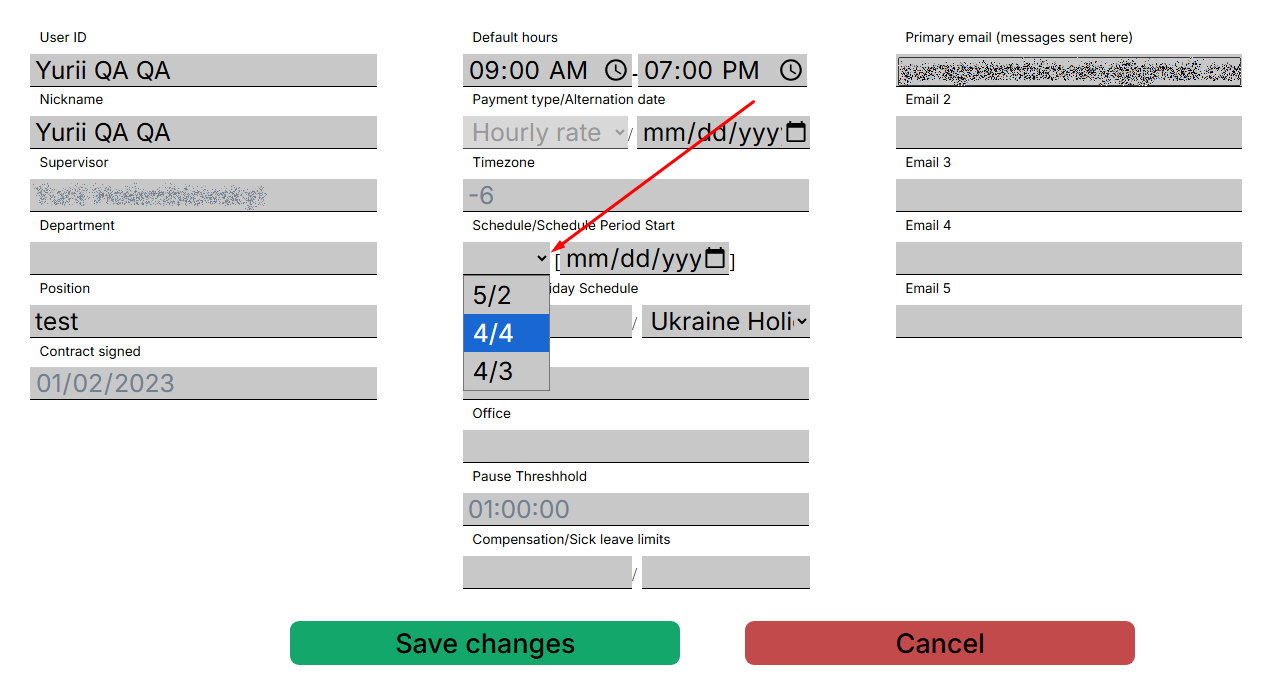
It is important to set the start date of the chart and save the changes afterwards.The work shifts are set, followed by weekend shifts.
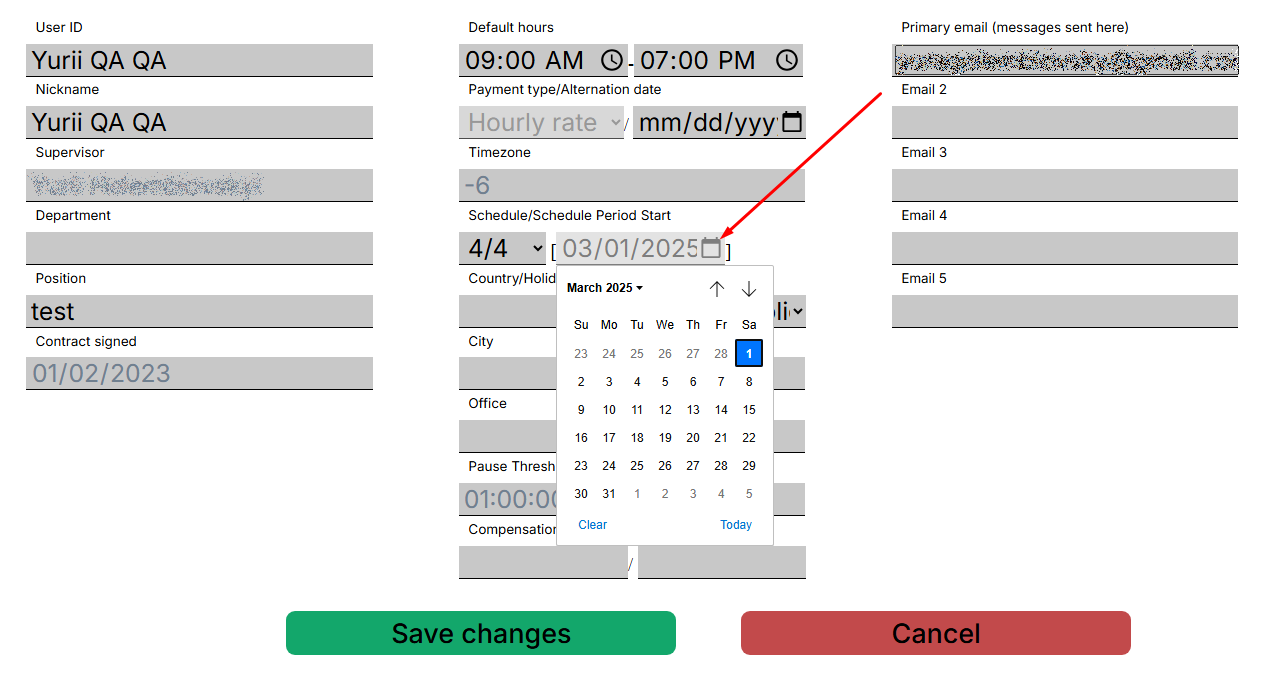
The Action Tracker system will recalculate and update schedule.You can view the entered data in the calendar or in the “Team Schedule” menu.You can see that 4 regular shifts and 4 day off are set.

Pay attention:
- A manually schedule has a higher priority than an automatic one..
- If the schedule has already been set manually, the automatic schedule will not replace it, but will only supplement it.
- The automatic schedule can only be applied to one contractor at a time.
Holiday Schedule
Holiday Schedule - necessary for setting holidays, must be applied separately for each contractor in the team. This type of event in the employment schedule is counted as a paid day off.
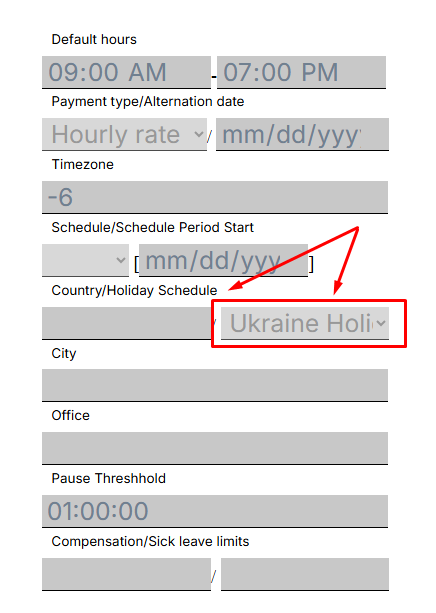
To configure the holiday setup for the selected contractor, open the profile of the relevant contractor, click the “Edit User” button, and select the setup from the drop-down list. Then click the “Save changes” button.
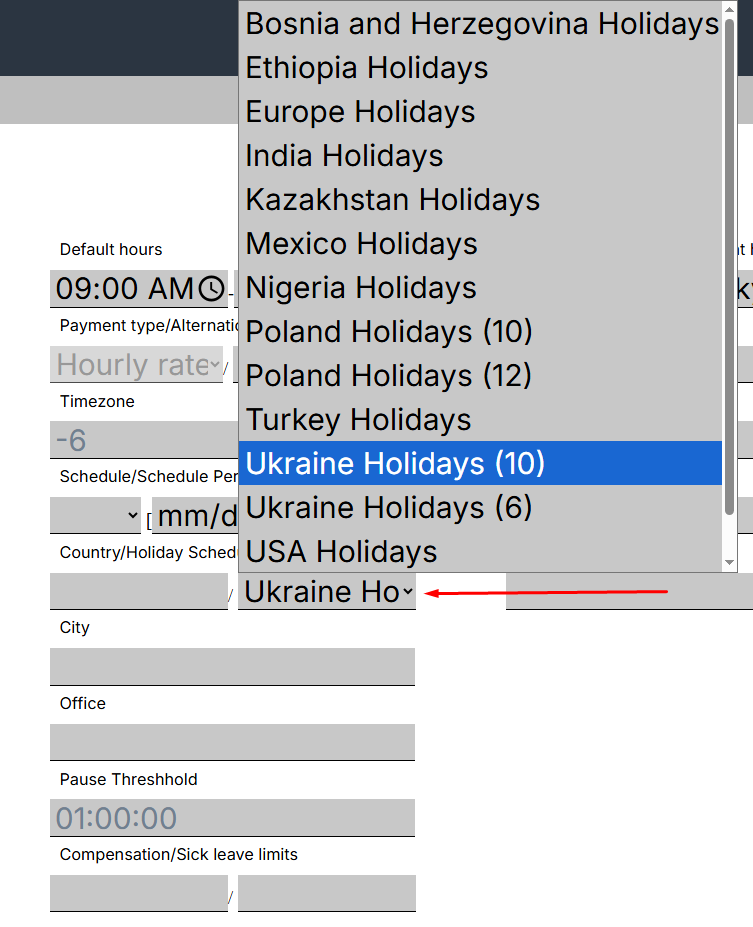
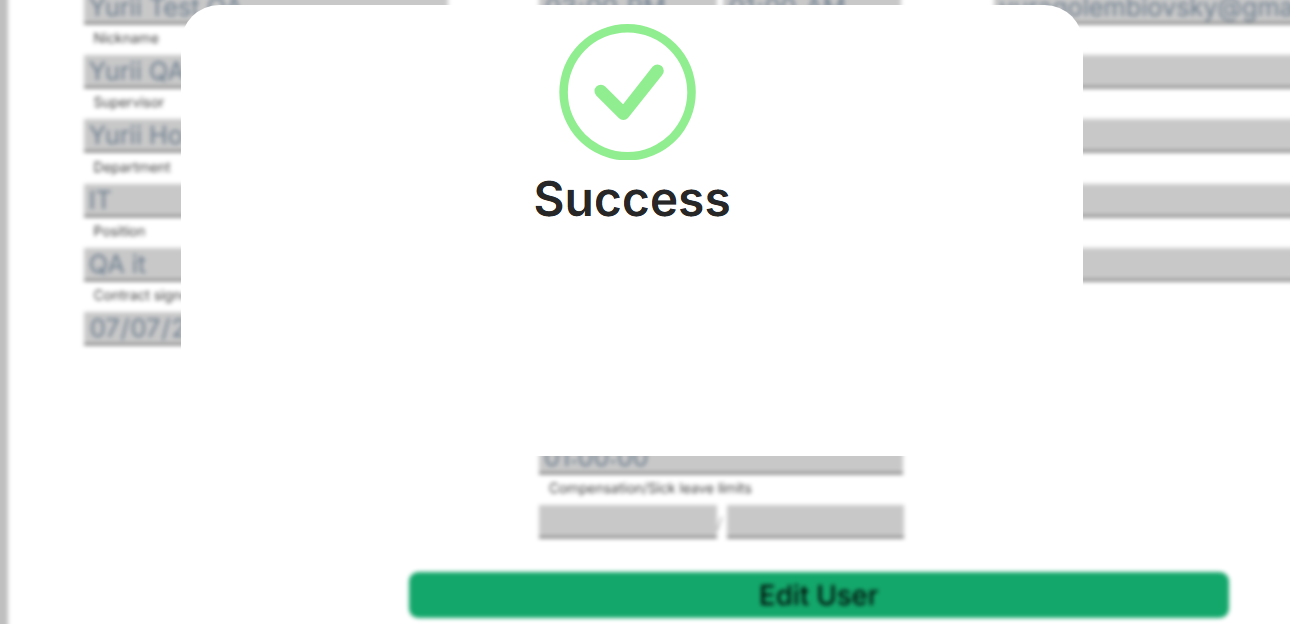
The action will be accompanied by a window about successful execution.
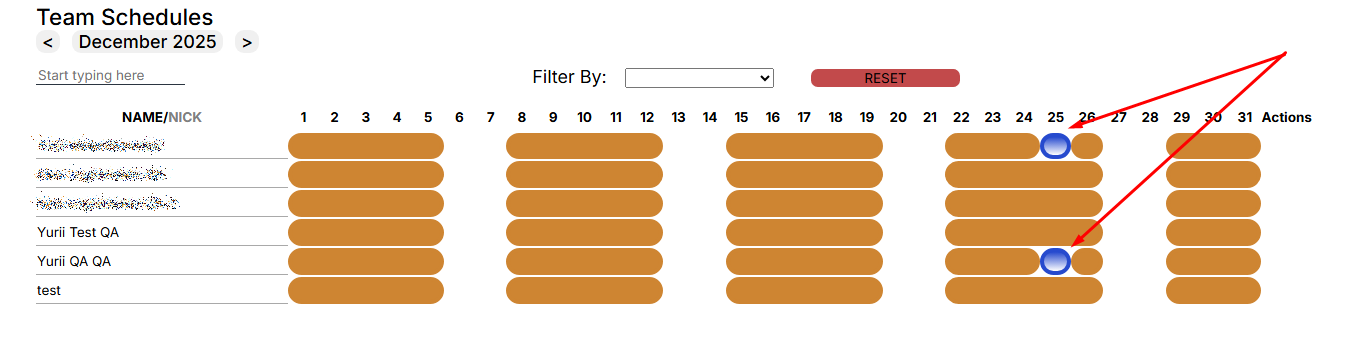
In the “Team Schedule” menu, the holiday will only apply to the selected contractor.
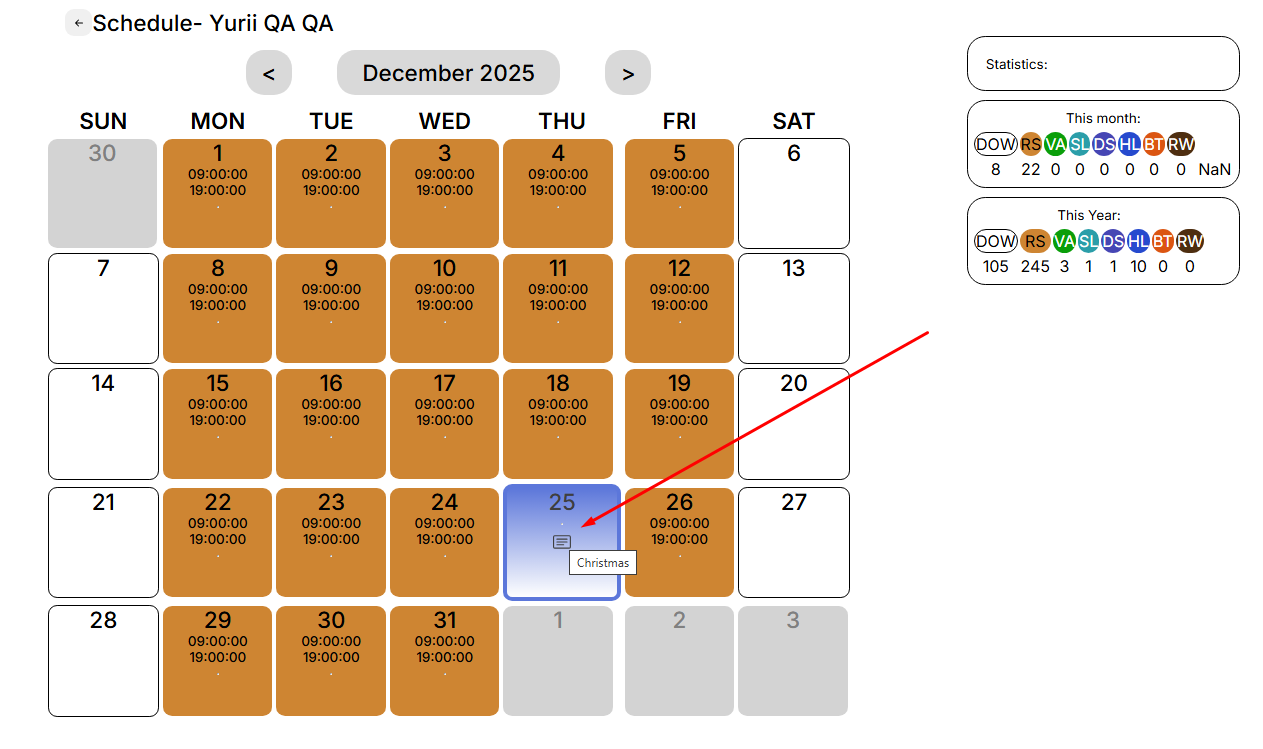
Pay attention to:
- The holiday will not apply to a contract employee who already had a personal schedule for that day.
- The holiday will not apply to a contract worker who has less than one year to sign the contract.
Contractor`s Data and Schedule corrections
The Action Tracker system implements the functionality of making adjustments to the activity of contractors who are added to the team.
To start making adjustments, you need find the right contractor and open their calendar.
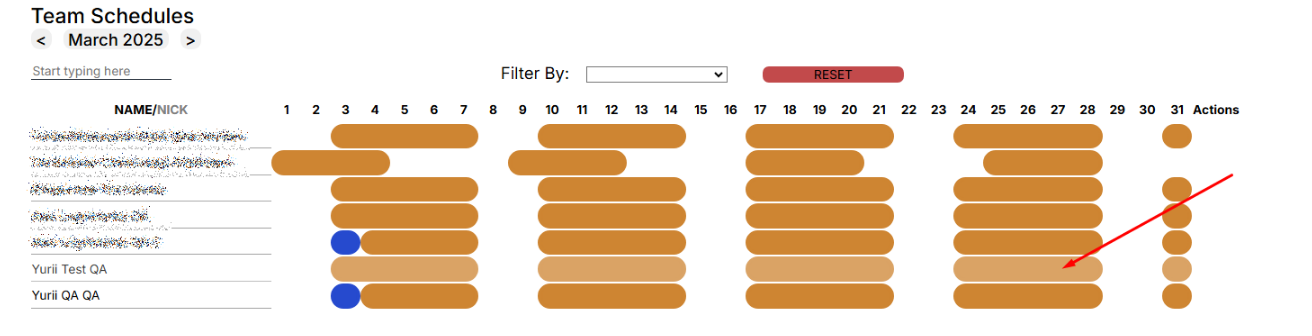
In the calendar, find the desired day, click on it.
A window opens with the parameters that can be edited. Click the “EDIT” button, the fields that can be edited are highlighted.
The following fields are available for correcting and entering data:
- Schedule Type
- Work Hours - work hours of reverse day employment
- Check-in/Check-out Data
- Pause Total
- Overtime
To save the corrected data, click the “Save” button. After saving the corrected data, the system will recalculate the hours.
When generating a report, the corrected data will be used and a mark will be set on the adjustments made.
Schedule Types:
- DOW - DayOff/Weekend - absence, unpaid
- RS - Regular Shift - paid
- VA - Vacation - absence, paid
- SL - Sick Leave - absence, paid
- DS - Duty Shift - paid
- HL - Holiday - absence, paid
- BT - Business Trip - paid
- RW - Remote Work - paid, mark the day of work from home
Important! You can only correct data for previous periods.
Supervisor cannot change the data himself.
You can only edit existing data: Check-in/Check-out.
holiday weekends
Ukraine Holidays (6)
| Holidays | 2026 | transferring a day off 2026 |
| New Year | 01/01/2026 | - |
| International Women's Day | 08/03/2026 | 09/03/2026 |
| Easter | 12/04/2026 | 13/04/2026 |
| Remembrance and Reconciliation Day | 08/05/2026 | - |
| Independence Day of Ukraine | 24/08/2026 | - |
| Christmas | 25/12/2026 | - |
Ukraine Holidays (10)
2026 year
| Holidays | 2026 | transferring a day off 2026 |
| New Year | 01/01/2026 | - |
| International Women's Day | 08/03/2026 | 09/03/2026 |
| Easter | 12/04/2026 | 13/04/2026 |
| Remembrance and Reconciliation Day | 08/05/2026 | - |
| Day of the Holy Trinity | 31/05/2026 | 01/06/2026 |
| Constitution Day of Ukraine | 28/06/2026 | 29/06/2026 |
| Day of Ukrainian Statehood | 15/07/2026 | - |
| Independence Day of Ukraine | 24/08/2026 | - |
| Day of Defender of Ukraine | 01/10/2026 | - |
| Christmas | 25/12/2026 | - |
USA Holidays
| USA Holidays | 2026 |
| New Year | 01/01/2026 |
| Remembrance Day | 05/25/2026 |
| Independence Day | 07/04/2026 |
| Labor Day | 09/07/2026 |
| Thanksgiving Day | 11/26/2026 |
| Christmas | 12/25/2026 |
Europe Holidays
| Europe Holidays | 2026 |
| New Year | 01/01/2026 |
| Easter | 05/04/2026 |
| International Workers' Day | 01/05/2026 |
| Day of the Holy Trinity | 09/06/2026 |
| Assumption of Mary | 17/08/2026 |
| All Saints' Day | 02/11/2026 |
| Christmas | 25/12/2026 |
Poland Holidays (10)
| Poland Holidays | 2026 |
| New Year | 01/01/2026 |
| Epiphany | 06/01/2026 |
| Easter Monday | 06/04/2026 |
| International Workers' Day | 01/05/2026 |
| 3 May Constitution Day | 03/05/2026 |
| Armed Forces Day | 15/08/2026 |
| All Saints' Day | 01/11/2026 |
| Independence Day | 11/11/2026 |
| Christmas (day one) | 25/12/2026 |
| Christmas (day two) | 26/12/2026 |
Poland Holidays (12)
| Poland Holidays | 2026 |
| New Year | 01/01/2026 |
| Epiphany | 06/01/2026 |
| Easter Monday | 06/04/2026 |
| International Workers' Day | 01/05/2026 |
| 3 May Constitution Day | 03/05/2026 |
| Day of the Holy Trinity | 31/05/2026 |
| Corpus Christi | 04/06/2026 |
| Armed Forces Day | 15/08/2026 |
| All Saints' Day | 01/11/2026 |
| Independence Day | 11/11/2026 |
| Christmas (day one) | 25/12/2026 |
| Christmas (day two) | 26/12/2026 |
Kazakhstan Holidays
| Holidays | 2026 |
| New Year | 01.01.2026 |
| International Women's Day | 09.03.2026 |
| Nowruz | 23-25.03.2026 |
| Kazakhstan People's Unity Day | 01.05.2026 |
| Defender of the Fatherland Day | 07.05.2026 |
| Victory Day | 09.05.2026 |
| Day of the Capital | 06.07.2026 |
| Constitution Day | 31.08.2026 |
| Republic Day | 26.10.2026 |
| Kazakhstan Independence Day | 16.12.2026 |
Ethiopia Holidays
| Holidays | 2026 |
| New Year | 11.09.2026 |
| Finding of the Cross | 27.09.2026 |
| Mawlid | 24.08.2026 |
| Christmas | 07.01.2026 |
| Epiphany | 19.01.2026 |
| Victory of Adwa | 02.03.2026 |
| Good Friday | 10.04.2026 |
| May one | 01.05.2026 |
| Patriot’s | 05.05.2026 |
| Eid Aldha | 27.05.2026 |
Nigeria Holidays
| Holidays | 2026 |
| New Year's Day | 01.01.2026 |
| Worker's Day | 01.05.2026 |
| Children's Day | 27.05.2026 |
| Democracy Day | 12.06.2026 |
| National Day | 01.10.2026 |
| Christmas Day | 25.12.2026 |
| Eid al Kabir | 26.05.2026 |
| Eid al Fitiri | 19.03.2026 |
| Good Friday | 03.04.2026 |
| Easter Monday | 06.04.2026 |
Turkey Holidays
| Holidays | 2026 |
| New Year | 01/01/2026 |
| National Sovereignty and Children's Day |
23/04/2026 |
| Labor and Solidarity Day | 01/05/2026 |
| Commemoration of Atatürk, Youth and Sports Day |
19/05/2026 |
| Democracy and National Unity Day |
15/07/2026 |
| Victory Day | 01/09/2026 |
| Republic Day | 29/10/2026 |
| Ataturk Commemoration Day. | 10/11/2025 |
| Ramadan | According to the lunar calendar used by Arabs. |
| Eid Al Adha | According to the lunar calendar used by Arabs. |
India Holidays
| Holidays | 2026 |
| New Year | 01.01.2026 |
| Republic Day | 26.01.2026 |
| Holi | 14.03.2026 |
| Good Friday | 18.04.2026 |
| Raksha Bandhan (Rakhi) | 09.08.2026 |
| Independence Day | 15.08.2026 |
| Mahatma Gandhi Jayanti | 02.10.2026 |
| Diwali/Deepavali | 20.10.2026 |
| Govardhan Puja | 22.10.2026 |
| Christmas | 25.12.2026 |
Uzbekistan Holidays
| Holidays | 2026 |
| New Year | 01.01.2026 |
| International Women's Day | 08.03.2026 |
| Nowruz | 23.03.2026 |
| Remembrance Day | 09.05.2026 |
| Eid-Al Fitr | 20.03.2026 |
| Independence Day of Uzbekistan | 01.09.2026 |
| Teachers' Day | 01.10.2026 |
| Constitution Day | 08.12.2026 |
Bosnia and Herzegovina Holidays
| Holidays | 2026 |
| New Year's Day | 1/1/2026 |
| Remembrance Day | 05/26/2026 |
| Independence Day | 07/04/2026 |
| Labor Day | 09/01/2026 |
| Thanksgiving Day | 11/26/2026 |
| Christmas Day | 12/25/2026 |
| Eid Al-Fitr | 03/20/2026 |
| Eid Al Adha | 05/27/2026 |
Mexico Holidays
| Holidays | 2026 |
| New Year | 01/01/2026 |
| Mexican Constitution Day | 26/02/2026 |
| Birth of Benito Juárez | 16/03/2026 |
| Holy Days | 02-03/04/2026 |
| Labor Day | 01/05/2026 |
| Mexican Independence Day | 16/09/2026 |
| Mexican Revolution Day | 16/11/2026 |
| Christmas | 25/12/2026 |