Reports
Important note
The Action Tracker system provides functionality that allows you to generate reports on the activity of contractors in a team for a period and download them in pdf and csv formats..
The system implements two types of reports that differ in the logic of calculating the time worked by marks Check-in/Check-out:
- Hourly Rate - implies payment by the hour.
- Fixed Rate - involves a flat rate of pay
Report Hourly Rate - applies to contractors who have an hourly payment type. You can check which type is set for a contract employee in their profile
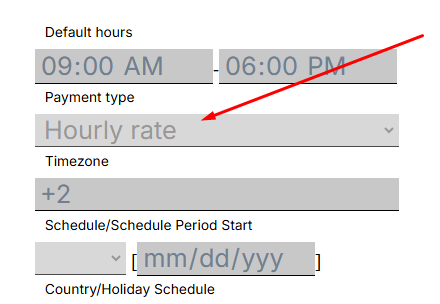
Key features of the report Hourly Rate:
- The total time between the executed Check-in та Check-out
- A fixed 1-hour pause is automatically deducted from the total time of the work shift.
- Overtime, are automatically recorded in the report.
- The manager may include unrecorded overtime in the contractors employment schedule.
Report Fixed Rate - applies to contractors whose payment type is fixed rate. You can check which type is set for a contractor in his profile
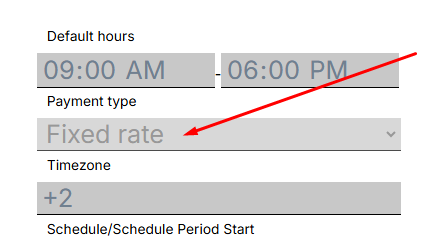
Key features of the report Fixed Rate:
- The report takes the hours specified in the contractor`s schedule.
- A fixed pause of 1 hour is automatically deducted from the working hours defined in the employment schedule.
- Overtime, are not recorded in the report.
- Overtime hours are entered manually by the manager.
Important: it is not recommended to generate a report for a period longer than 30 days, especially if you have a large team. This can take a lot of time.
Getting started with Reports
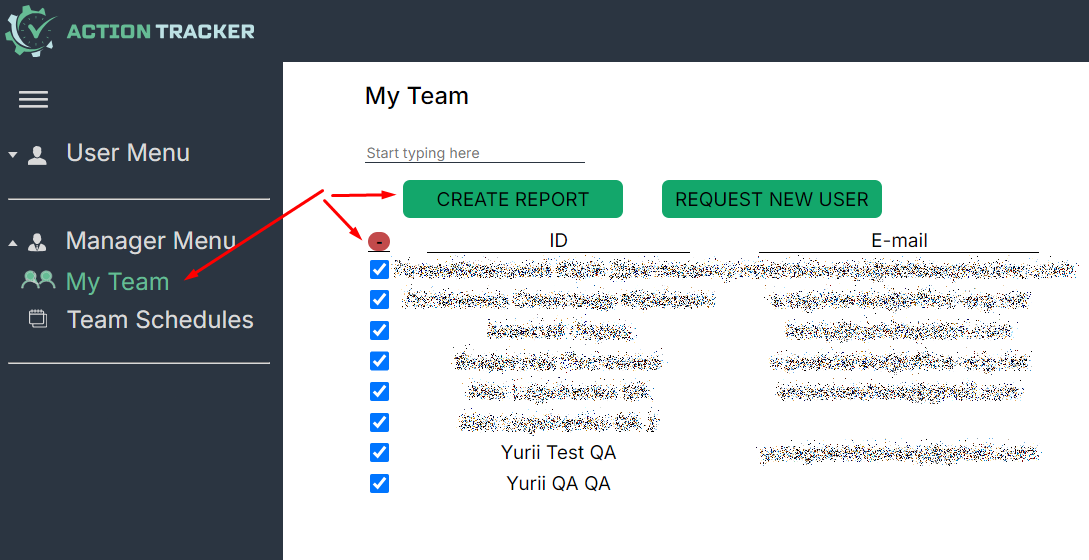
To generate the report, go to the "My Team" section, select the users for whom you want to get the report, and click "Create Report".

Specify the reporting period in the next window.

After you select the period, go to the generated report. To do this, press “Form report”.

In the next window is a report on selected users for the specified period.
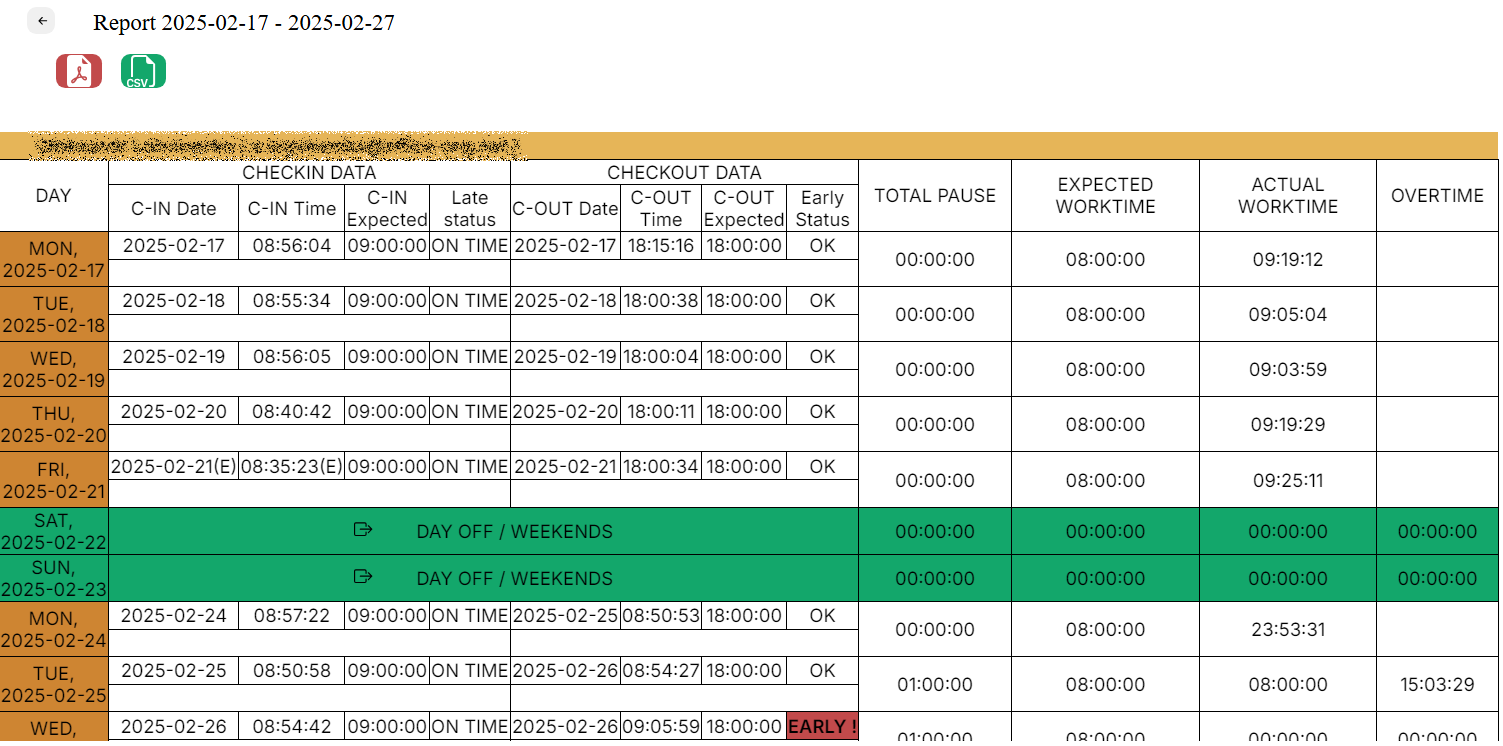
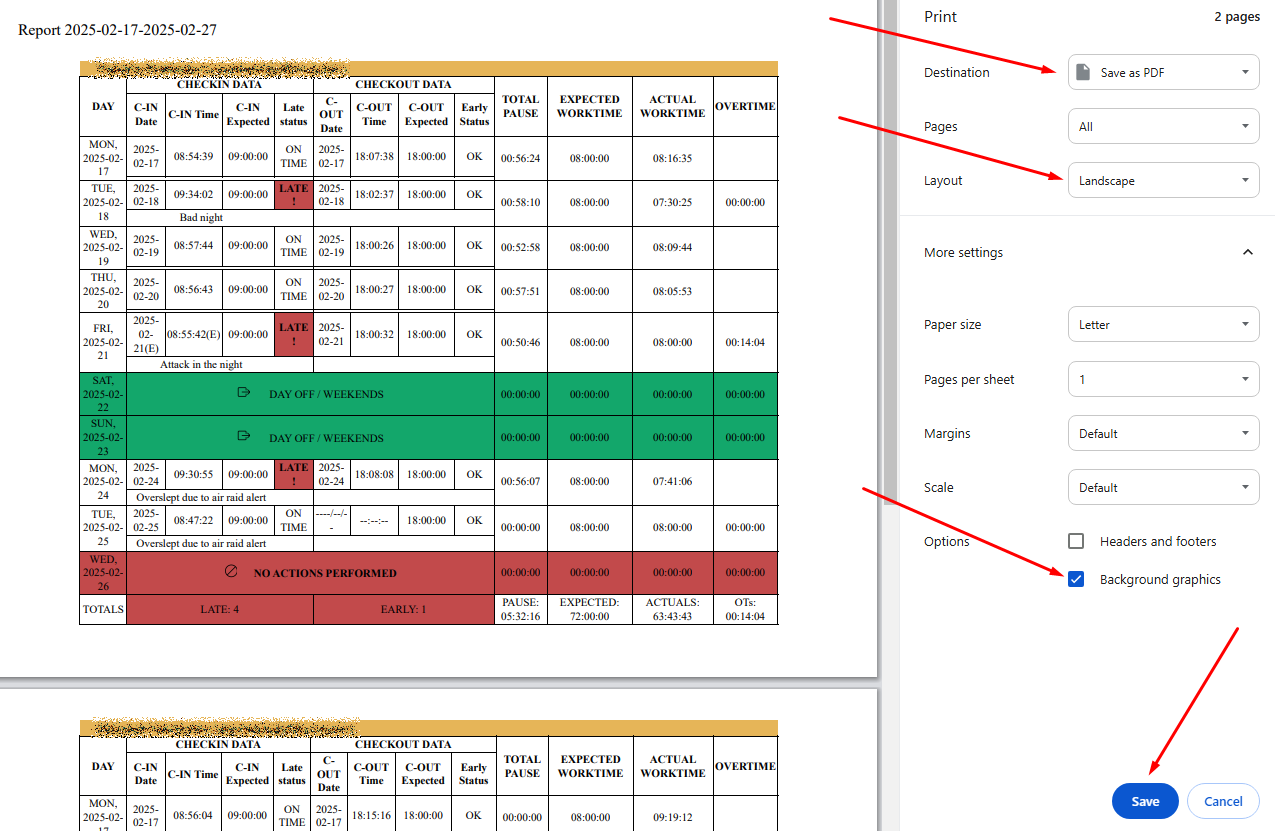
The report can be downloaded as a pdf or csv by pressing the button, as shown in the screenshot below.
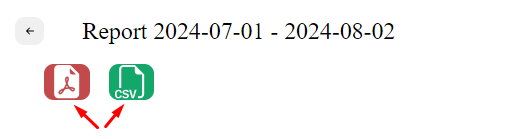
A new window will open in the browser, which allows you to download the report.
If you want background coloring to be printed as well, press “More settings” and check “Background graphics” in the “Options” section, as shown in the screenshot below.